# China Payments Plugin Documentation: full documentation corpus
---
Source: https://docs.chinapaymentsplugin.com/
---
title: "China Payments Plugin Documentation"
description: "This is the full documentation for China Payments Plugin - a WordPress plugin that lets you accept WeChat Pay, Alipay & UnionPay payments."
url: "https://docs.chinapaymentsplugin.com/"
---
### Thanks for using China Payments Plugin!
We're glad you're here, and we're here to support you 100%.
China Payments Plugin was built for entrepreneurs and businesses of all sizes that want to accept WeChat Pay, Alipay, and UnionPay payments on their WordPress website. The PRO version also includes checkout optimizations like Chinese localization and multi-currency CNY display.
You can download the [free version](https://wordpress.org/plugins/wp-stripe-global-payments/) from WordPress.org or learn about our [paid features](https://chinapaymentsplugin.com/pricing/).
The best way to get in touch with our team is by [opening a ticket](https://chinapaymentsplugin.com/support/) including the details of your question, feature request, bug report, or any other concerns. We'll reply as quickly as possible, usually within 24 hours Monday - Friday.
In the meantime, please peruse our documentation for answers to your questions. If you can't find what you're looking for, be sure to tell us, and we'll create a doc just for you 🙂
---
Source: https://docs.chinapaymentsplugin.com/changelog/changelog/
---
title: "Changelog"
description: "The latest features, upgrades, and bug fixes for China Payments Plugin."
url: "https://docs.chinapaymentsplugin.com/changelog/changelog/"
---
### Version 3.6.1 - September 17, 2026
* Added: A licensed subscription now also removes the Payment Page plugin's transaction fee on the same site (on Payment Page's free version). Requires Payment Page 1.5.4 or later.
* Fixed: The Payment Page integration is more resilient — it no longer assumes Payment Page is loaded, or that its payment-method catalog has the expected shape, before reading it.
### Version 3.6.0 - August 19, 2026
* Fixed: Checkout block payment methods now load reliably.
* Compatibility: Tested up to WordPress 7.1. Updated Freemius SDK.
### Version 3.5.9 - June 30, 2026
* Fix: Multi-currency — the approximate CNY (¥) estimate now also appears next to the shipping, cart fee, and tax lines on the cart and checkout (classic and the WooCommerce Checkout block), and correctly includes tax when prices are displayed inclusive of tax.
### Version 3.5.8 - June 24, 2026
* Fix: WeChat Pay, Alipay, and UnionPay now appear and work on the WooCommerce Checkout block again (they were missing from the block checkout due to a packaging issue). Classic checkout was unaffected.
* Fix: When a payment fails, customers can now retry it from the order-pay page (My Account → Orders) — WeChat Pay and Alipay are shown there instead of "no available payment methods."
* Fix: LifterLMS — after paying with WeChat Pay or Alipay, students are taken straight to their course success page instead of being left on the payment-confirmation screen.
* Improvement: Consistent WeChat Pay, Alipay, and UnionPay icon sizing on the WooCommerce Checkout block.
### Version 3.5.7 - June 24, 2026
* Fix: UnionPay now works on the classic checkout, not just the Checkout block — the card field appears and the payment completes. (Previously it stalled with no card field and left the order unpaid.) WeChat Pay and Alipay are unchanged.
* Fix (security): The UnionPay card step now keeps its after-payment redirect on your own site.
* Improvement: The WeChat Pay, Alipay, and UnionPay icons now show at a consistent size and line up with their labels at checkout.
### Version 3.5.6 - June 6, 2026
* Improvement: Stripe payment-confirmation webhooks are now acknowledged instantly and the order is completed in the background, so a burst of payments can no longer slow down or tie up your site. Order completion is unchanged and stays safe against duplicate or retried webhooks.
### Version 3.5.5 - May 31, 2026
* Fix: The plugin is now properly translated. Its translations previously never loaded (the loader referenced the wrong text domain) and weren't bundled. All 13 community translations from WordPress.org — Danish, German, Spanish, French, Italian, Japanese, Dutch, Portuguese, Swedish, and Simplified Chinese — now ship with the plugin and apply automatically based on your site language.
* Fix: Automatic Stripe webhook creation failed on connected accounts (missing the required `api_version` parameter), so payment-confirmation webhooks were never registered and order completion fell back to the 24-hour cron. Webhooks now register correctly on connect.
* Fix: Resolved an admin JavaScript error ("Cannot read properties of undefined (reading 'first\_name')") that could block the Stripe Connect button from working.
* Improvement: Storefront localization now applies WordPress's full installed language pack for the chosen locale (WordPress core, WooCommerce, blocks, theme, and plugin strings), with the plugin's curated overrides still on top. A new setting lets you force any installed language — not only Chinese. The WordPress admin stays in your site language.
### Version 3.5.4 - May 28, 2026
* Build: Cleaner customer ZIP — dev configs (`phpunit.xml.dist`, `phpcs.xml.dist`, `phpstan.neon`, `playwright.config.js`, `.wp-env.json`) no longer ship inside the plugin. All tests + dev tooling now live in our separate testing-suite repo. Customer-facing plugin code is byte-identical to 3.5.3.
### Version 3.5.3 - May 27, 2026
* Fix: Correct Stripe minor-unit conversion for 9 PaymentIntent.amount sites. Previously, `intval( floatval( $amount ) * 100 )` could silently truncate $X.99 amounts by 1 cent (e.g. $0.99 → 98 cents) due to PHP float drift. Now routed through a new `ChinaPayments\Core\CurrencyHelper::to_stripe_amount()` that uses round-half-up and a full Stripe-spec 0-/2-/3-decimal currency map (16 zero-decimal currencies incl. BIF / MGA / VND / JPY; 5 three-decimal currencies BHD / KWD / OMR / JOD / TND).
* Fix: Stripe webhook now returns proper HTTP 400 on unsigned or invalid-signature payloads. Previously `http_response_code()` was a no-op inside the WP REST controller, causing all failure responses to ship as HTTP 200 (Stripe interprets 200 as "stop retrying"). Switched all responses to `new WP_REST_Response( $body, $status )`.
* Fix: Webhook now catches `\Stripe\Exception\SignatureVerificationException` explicitly, returning 400 instead of 500 on bad signatures.
* Security: Migration AJAX handler (`wp_ajax_china_payments_migration_handler`) now verifies a `check_ajax_referer()` nonce in addition to its existing capability check.
* i18n: Two `__( 'Order' )` calls in the WooCommerce gateway were missing the `wp-stripe-global-payments` text domain — now translatable. One `__()` call in the payment-gateway REST file had a stray third argument (silently misclassifying the text domain) — corrected.
* Compat: WooCommerce HPOS (custom order tables) compatibility declaration locked under regression tests.
### Version 3.5.2 - May 18, 2026
* Compat: WP 7.0 readiness (Tested up to 7.0).
* Compat: Declared HPOS (High-Performance Order Storage) compatibility for WooCommerce 8.x+. Removes the "Plugin is not compatible" warning on stores with the new custom-order-tables data store enabled.
* Fix: UnionPay icon max-width set to 128px to match its native aspect ratio in WooCommerce classic + block checkouts (was rendering too small).
### Version 3.5.1 - March 18, 2026
* Fix: Stripe webhook payload reading + hardened webhook security.
* Updated Freemius SDK.
### Version 3.5.0 - March 10, 2026
* Added UnionPay.
* Added Optimizations for checkout localization currency display.
### Version 3.4.2 - Dec 16, 2025
* Update Freemius SDK.
### Version 3.4.1 - Jan 27, 2025
* Added improved methods for payment confirmation on WooCommerce, including cron checks for the first 24 hours after payment.
* Updated Stripe library.
* Update Freemius SDK.
### Version 3.4.0 - Oct 23, 2024
* Update Freemius SDK.
### Version 3.3.9 - Sept 25, 2024
* Translation fixes.
### Version 3.3.8 - Sept 20, 2024
* Freemius SDK update.
* Translation fixes.
### Version 3.3.7 - July 17, 2024
* Fix to Simple Membership integration.
### Version 3.3.6 - July 17, 2024
* WooCommerce Gutenberg Block checkout now supported!
* Update to Freemius SDK.
### Version 3.3.5 - April 9, 2024
* Fixed conflict with Google SiteKit Plugin.
### Version 3.3.4 - November 22, 2024
* We’ve added the LifterLMS integration!
### Version 3.3.3 - October 12, 2023
* We’ve added the Simple Membership integration!
* Updated Freemius SDK.
### Version 3.3.2 - July 7, 2023
* WooCommerce integration updates.
### Version 3.3.1 - July 6, 2023
* MemberPress compatibility fix.
### Version 3.3 - July 5, 2023
* Rebuild of MemberPress integration.
* Update Freemius SDK.
### Version 3.2.3 - August 26, 2022
* Updated Freemius SDK to v2.4.5.
### Version 3.2.2 - July 29, 2022
* Bug fix for Stripe accounts that disconnect from the platform.
### Version 3.2.1 - July 14, 2022
* General bug fixes.
* Updated link to documentation.
* Freemius SDK update to v2.4.4.
### Version 3.2.0 - May 27, 2022
* Added Alipay recurring payments via Stripe.
* Bugfix to activating payment methods from settings area in TEST mode.
* Text changes in the UI.
### Version 3.1.0 - May 16, 2022
* Made WeChat Pay available in the free version for WooCommerce and Payment Page.
* Implemented platform fee for free version of plugin.
* Simplified the Settings area and Quick Setup.
### Version 3.0.2 - April 29, 2022
* Fix for Live Webhook Signing Secret not rendering properly.
### Version 3.0.1 - April 1, 2022
* Improved error handling.
### Version 3.0 - March 18, 2022
* Completely refactored settings interface and first-time user experience.
* New and more secure Stripe Connect API.
* Rebuilt the integration with WooCommerce to be more reliable.
* New integration with Payment Page plugin.
* Payment Buttons and shortcodes deprecated in favor of Payment Page integration.
* MemberPress deprecated (will be rebuilt in future).
* Some other optimizations have been deprecated.
### Version 2.3.6 - December 23, 2021
* Updates to the currency conversion API for WooCommerce.
* Added a dropdown indicator icon or the currency selector field.
* Reset currency conversion every time the form is loaded.
* Fixed a conflict with the Conditional Checkout Fields for WooCommerce plugin.
### Version 2.3.5 - November 16, 2021
* Updates to ensure the currency conversion API is working on WooCommerce checkout and for fixed amounts on the Payment Buttons.
### Version 2.3.4 - November 9, 2021
* Bugfix for currency conversion API not showing when logged out of the site in some cases.
### Version 2.3.3 - November 4, 2021
* Currency conversion API now displays error responses.
* Bugfix for WooCommerce checkout throwing an integer comma placement error for payments above 1,000 currency units in some cases.
### Version 2.3.2 - November 1, 2021
* CNY is now available for checking out with WeChat Pay and Alipay on the Payment Buttons.
* CNY is now available for checking out with WeChat Pay + WooCommerce.
* Payment amounts are now handled properly regardless of the WooCommerce Store's currency decimal settings.
* Improved handling for non-decimal currencies with custom payment amounts.
* New shortcodes for managing default currencies independently for each payment method on the Payment Buttons.
### Version 2.3.1 - October 1, 2021
* Improved error handling for MemberPress.
### Version 2.3 - September 30, 2021
* Updated [MemberPress](https://chinapaymentsplugin.com/memberpress/) integration to the Stripe Payment Intents API.
* Ensured the payment flow is catching all kinds of errors when they occur to help diagnose issues.
* Fixed non-decimal currencies having an issue with the payment button checkout.
* Updates for Stripe Partners Program.
* Removed notification to reconnect Stripe since the latest update to our Stripe Connect API in June.
### Version 2.2.4 - Sept 10, 2021
* Handling some Stripe console errors in certain situations.
### Version 2.2.3 - August 31, 2021
* Fixed bug for one-time WeChat Pay and Alipay payments not checking for a customer properly in Stripe.
### Version 2.2.2 - August 30, 2021
* Upgrades to meet Stripe Partners Program requirements.
* Fixed bug for one-time credit card payments not checking for a customer properly in Stripe.
### Version 2.2.1 - August 5, 2021
* Added notification to reconnect Stripe based on latest Stripe API upgrades.
### Version 2.2 - July 30, 2021
* Upgrading to Stripe Payment Intents API with Secure Customer Authentication and 3D Secure.
* Moving WooCommerce settings to the WooCommerce Payments area.
* Ensuring MemberPress is a PRO feature in all cases (not Business).
* Update to Freemius SDK pricing page.
* Adding option to remove all plugin data and DB entries on uninstall.
### Version 2.1.1 - May 04, 2021
* Fixed credit card payment form redirect issue.
* Fixed currency conversion API bug showing all the time.
* Fixed Alipay checkout icon size.
* Added improved freemium upgrade flow options.
### Version 2.1 - March 31, 2021
* Updated Settings UI.
* Currency conversion API now supports WooCommerce checkout.
* Bug fixes.
* Freemius SDK Update.
### Version 2.0 - January 22, 2021
* Modernized the WP Admin upgrade page.
* MemberPress integration.
### Version 1.5.7 - January 13, 2021
* Minor updates.
### Version 1.5.6 - January 8, 2021
* Fixed an issue with expiring WeChat QR codes.
### Version 1.5.5 - December 21, 2020
* Improving security and Freemius SDK version updated.
### Version 1.5.4 - September 1, 2020
* Adapted for WordPress 5.5.
### Version 1.5.3 - August 25, 2020
* Minor updates and security improvements.
### Version 1.5.2 - August 10, 2020
* Fixed Alipay logo size for WooCommerce checkout.
### Version 1.5.1 - July 30, 2020
* Added Alipay for WooCommerce.
* Designating thank you page for the payment form.
* Improving security and minor fixes.
### Version 1.5.0 - May 04, 2020
* Minor fixes.
### Version 1.4.9 - April 21, 2020
* Minor fixes.
### Version 1.4.8 - April 07, 2020
* Updated Translations.
* Fixed amounts for all payments methods.
* New logos and minor fixes.
### Version 1.4.7 - March 16, 2020
* WooCommerce integration.
* Alipay and WeChat Pay logos updated.
### Version 1.4.6 - March 04, 2020
* Minor update.
### Version 1.4.5 - March 02, 2020
* All JS files are now minified to improve speed.
* Stripe.js now will be called only on the payment page and not on other pages. another page.
* Some console errors were fixed.
* General bug fixes.
### Version 1.4.4 - February 17, 2020
* Fixing issues related to customer creation, webhooks and console warnings.
### Version 1.4.3
* Major bug fixes for webhooks.
* Improvements to saving customer data in Stripe.
### Version 1.4.2
* Mobile UX improvements.
* Shortcode modifications.
* Stripe Connect upgrades.
### Version 1.4.1
* Fixing webhook issues.
### Version 1.4
* Improvements in the Payment method forms.
### Version 1.3.9
* Minor upgrades regarding payments forms.
### Version 1.3.8
* Upgrade with minor changes.
### Version 1.3.7
* Minor fix and log updates.
### Version 1.3.6
* Minor updates and bug fixes.
### Version 1.3.4
* Log improvements and Bug fixes.
### Version 1.3.3
* BIG update!
* Added Stripe Connect.
* Added Currency conversion.
* Added UI checkout text.
* Added Phone number field.
* Creating a Customer in Stripe for payments.
* Error logging.
* Bug fixes.
### Version 1.3.2
* Adding readme info and updating plans.
### Version 1.3.1
* Bug fixing and improved mobile experience.
### Version 1.2.1
* Minor updates.
### Version 1.1.2
* Minor updates.
### Version 1.1.1 - March 3, 2019
* Our first version!
---
Source: https://docs.chinapaymentsplugin.com/checkout-flows/embeddable-payment-buttons/
---
title: "Payment Page (payment form)"
description: "Here's how to create a WeChat Pay and Alipay payment form using the Payment Page integration."
url: "https://docs.chinapaymentsplugin.com/checkout-flows/embeddable-payment-buttons/"
---
We recommend using the free [Payment Page plugin](https://wordpress.org/plugins/payment-page/) in order to accept WeChat Pay and Alipay payments in a simple payment form.
You don't need to have China Payments Plugin installed when using Payment Page, and Payment Page will require a whole other Stripe connection.
Please review [Payment Page Documentation](https://docs.payment.page) for details.
---
Source: https://docs.chinapaymentsplugin.com/checkout-flows/lifterlms/
---
title: "LifterLMS"
description: "China Payments Plugin now integrates with LifterLMS so you can sell courses to the Chinese market using WeChat Pay and Alipay"
url: "https://docs.chinapaymentsplugin.com/checkout-flows/lifterlms/"
---
Simply install and activate the [LifterLMS plugin](https://shrsl.com/4haj0) and configure their payment methods as you normally would, based on their [documentation](https://shrsl.com/4haiz).
Be sure you've followed our [Quick Setup](/getting-started/setup-process/) process, and WeChat Pay and Alipay should appear in the LifterLMS settings.
If you have any issues with the integration, please refer to our [Troubleshooting Guide](/troubleshooting/troubleshooting-steps/).
Important: China Payments Plugin requires it's own connection to Stripe. Although the payment methods will show up in the same area as the LifterLMS Stripe plugin, the plugin uses it's own Stripe connection to process payments.
---
Source: https://docs.chinapaymentsplugin.com/checkout-flows/memberpress/
---
title: "MemberPress"
description: "This page covers everything you need to know about the China Payments Plugin + MemberPress integration."
url: "https://docs.chinapaymentsplugin.com/checkout-flows/memberpress/"
---
Since WeChat Pay and Alipay don't support recurring subscriptions out of the box, it's only possible to sell Memberships that require manual renewals at this point. Members can manually renew by signing up for the Membership again or logging into their accounts and paying for the next period.
You should ignore any trial periods, discount periods, etc, and charge your members the full price of one cycle. Alternatively, you can disable WeChat Pay and Alipay for recurring Memberships.
Make sure you've already followed the [Setup Process](/getting-started/setup-process/) before proceeding.
To activate WeChat Pay and Alipay for WooCommerce, ensure you have MemberPress installed.
To activate WeChat Pay or Alipay, go to MemberPress > Settings > Payments.
Click on the “+” sign, then select either "WeChat Pay via Stripe" or “Alipay via Stripe”. Then click on “Update Options.”
Update the Description and Message boxes to change what appears on the frontend during the checkout process.
After you've activated WeChat Pay and Alipay for MemberPress in the MemberPress Payment Settings, the payment methods will appear on the front-end:
For Alipay, customers will be redirected to the Alipay website or Alipay mobile app to complete payment.
For WeChat Pay, customers will be redirected to scan a QR code - they should physically scan the QR code with the WeChat Mobile app camera function:

Upon payment completion, customers will be redirected to the payment confirmation page, where they can then login to take advantage of their new Membership.
---
Source: https://docs.chinapaymentsplugin.com/checkout-flows/simple-membership-plugin/
---
title: "Simple Membership Plugin"
description: "This page covers everything you need to know about the China Payments Plugin + Simple Membership Plugin integration."
url: "https://docs.chinapaymentsplugin.com/checkout-flows/simple-membership-plugin/"
---
China Payments Plugin supports accepting payments via WeChat Pay and Alipay with the [Simple Membership Plugin](https://wordpress.org/plugins/simple-membership/).
Once you've [configured](/getting-started/setup-process/) China Payments Plugin and [activated necessary payment methods](/getting-started/activating-payment-methods/), go to *WP Membership > Payments > Create New Button*. Then, select to create a new button with WeChat Pay or Alipay, and click *Next*.
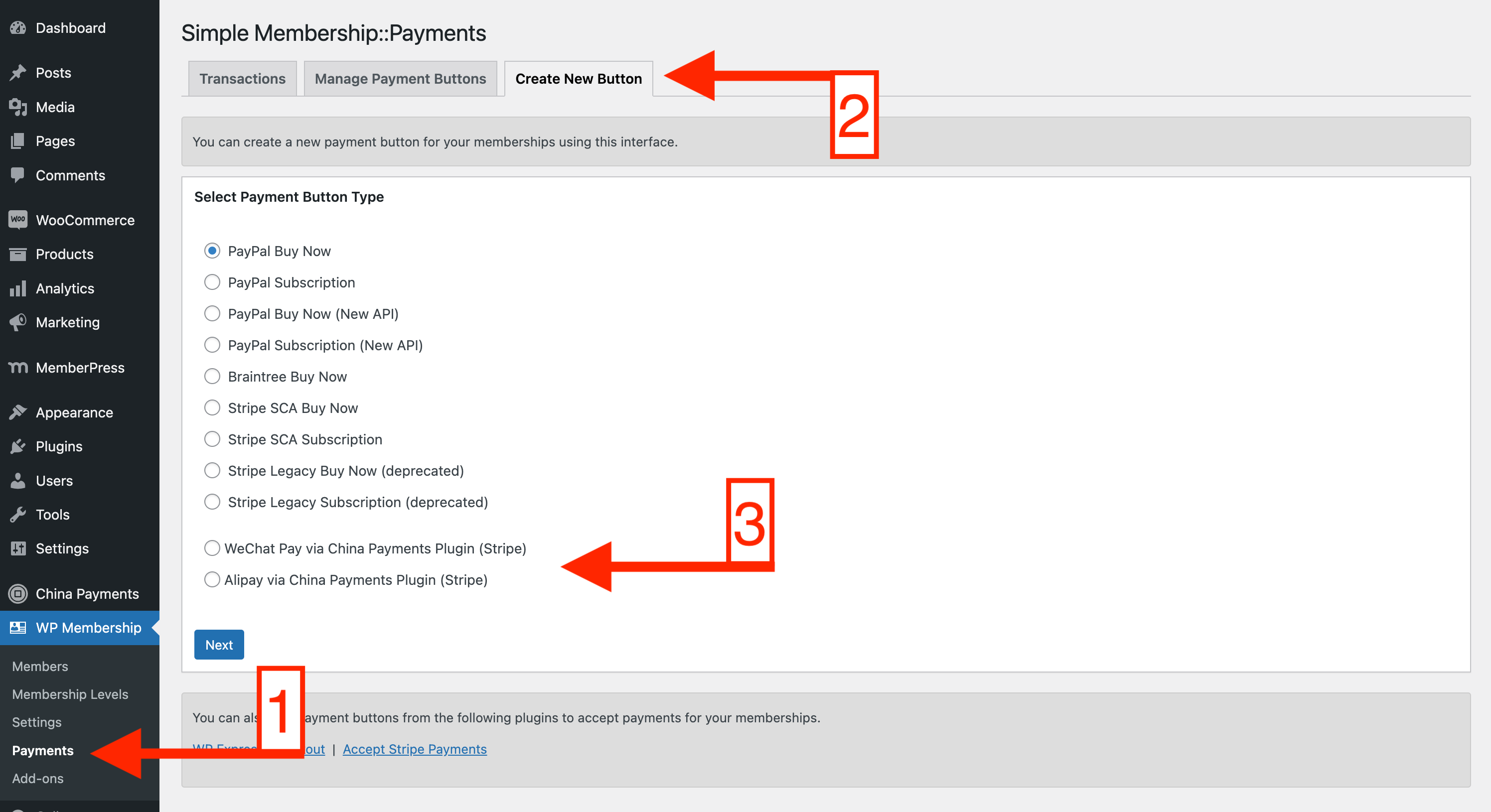
*Creating a New Button in Simple Membership Plugin*
On the next page, you can customize the following details about the button:
* Button title
* Membership level
* Payment Amount
* Payment Currency (ensure that it matches either CNY or the default payout currency for your Stripe account)
* Return URL (the URL your visitors will be redirected upon payment completion)
* Button Image URL (customize the look of the button with an image instead of text)
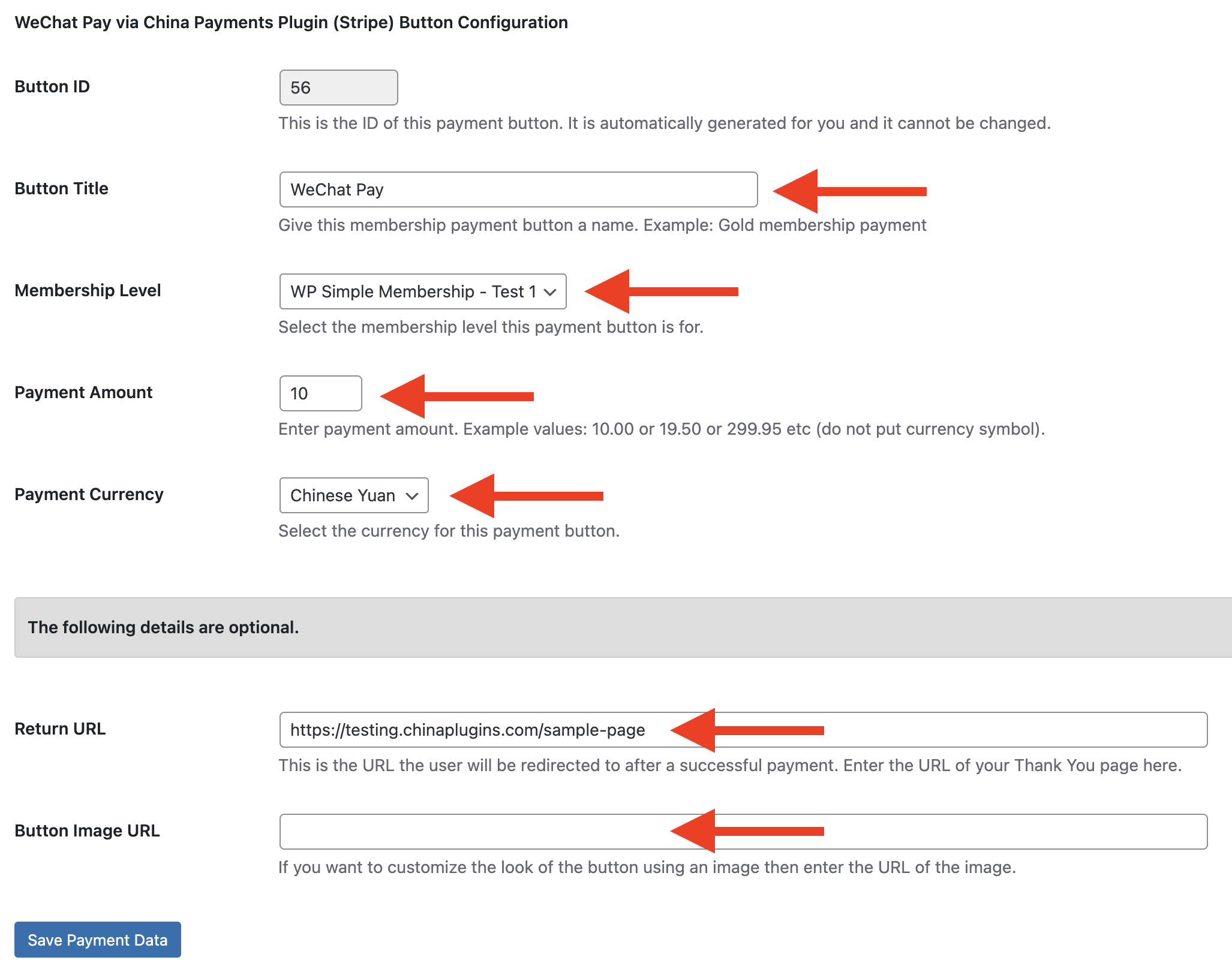
*Customizing WeChat Pay Payment Button Options in Simple Membership*
Click *Save Payment Data*, and then copy the shortcode from the *Manage Payment Buttons* section and put it anywhere on your website where you want members to sign up.
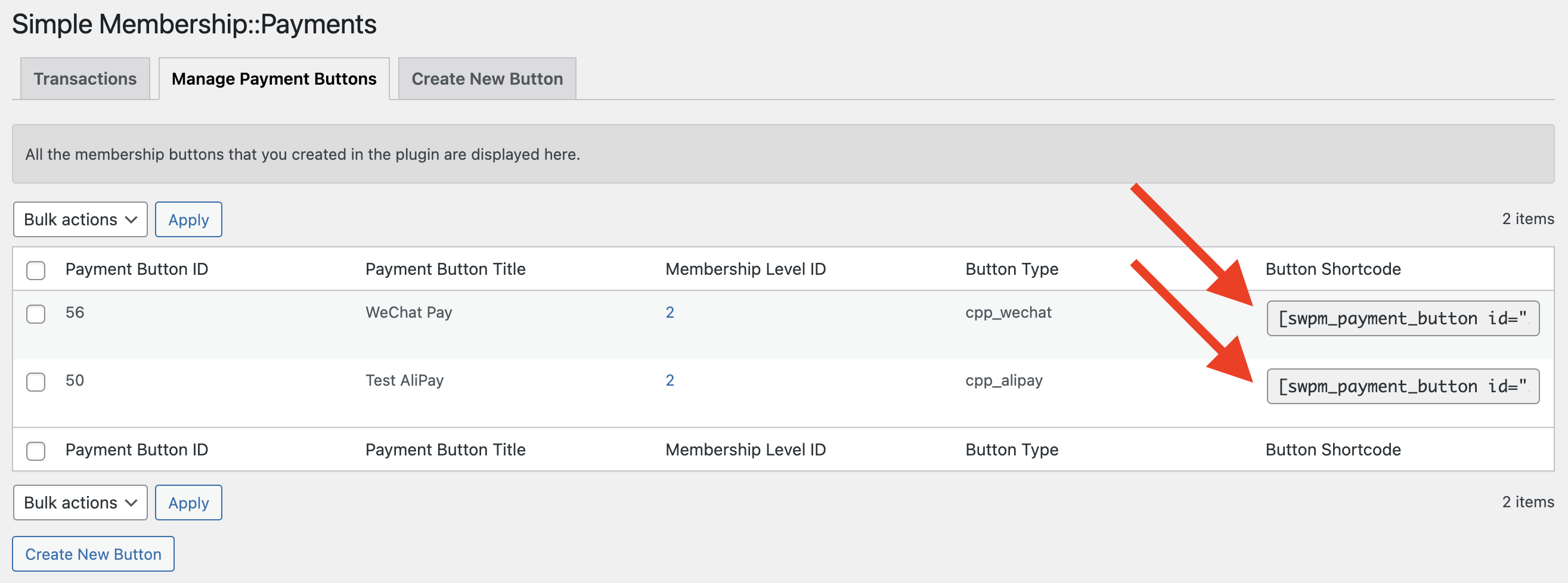
*Copying Shortcodes for Payment Buttons in Simple Membership Plugin*
To complete payment, your members must be registered as free users first. This is the default approach taken by the Simple Membership Plugin.
---
Source: https://docs.chinapaymentsplugin.com/checkout-flows/woocommerce/
---
title: "WooCommerce"
description: "This page covers everything you need to know about the China Payments Plugin + WooCommerce integration."
url: "https://docs.chinapaymentsplugin.com/checkout-flows/woocommerce/"
---
### Setting up WeChat Pay, Alipay, and UnionPay for WooCommerce
In order for WooCommerce orders to process correctly, [Webhooks](/faqs/how-do-i-set-up-stripe-webhooks/) must be configured properly.
Feel free to read the documentation below or watch this video that covers everything you need to know about setting up WooCommerce integration for China Payments Plugin.
[How to Accept WeChat Pay with WooCommerce](https://www.youtube.com/watch?v=qxkL4T6ZSXg)
To setup WooCommerce, follow these instructions:
Make sure you've already followed the [Setup Process](/getting-started/setup-process/) before proceeding.
To activate WeChat Pay, Alipay, and UnionPay for WooCommerce, ensure you have WooCommerce installed.
Go to the WooCommerce Payment Settings, and enable **WeChat Pay by China Payments Plugin**, **Alipay by China Payments Plugin**, and **UnionPay by China Payments Plugin**.
### Under "WeChat Pay by China Payments Plugin", you'll see these settings:
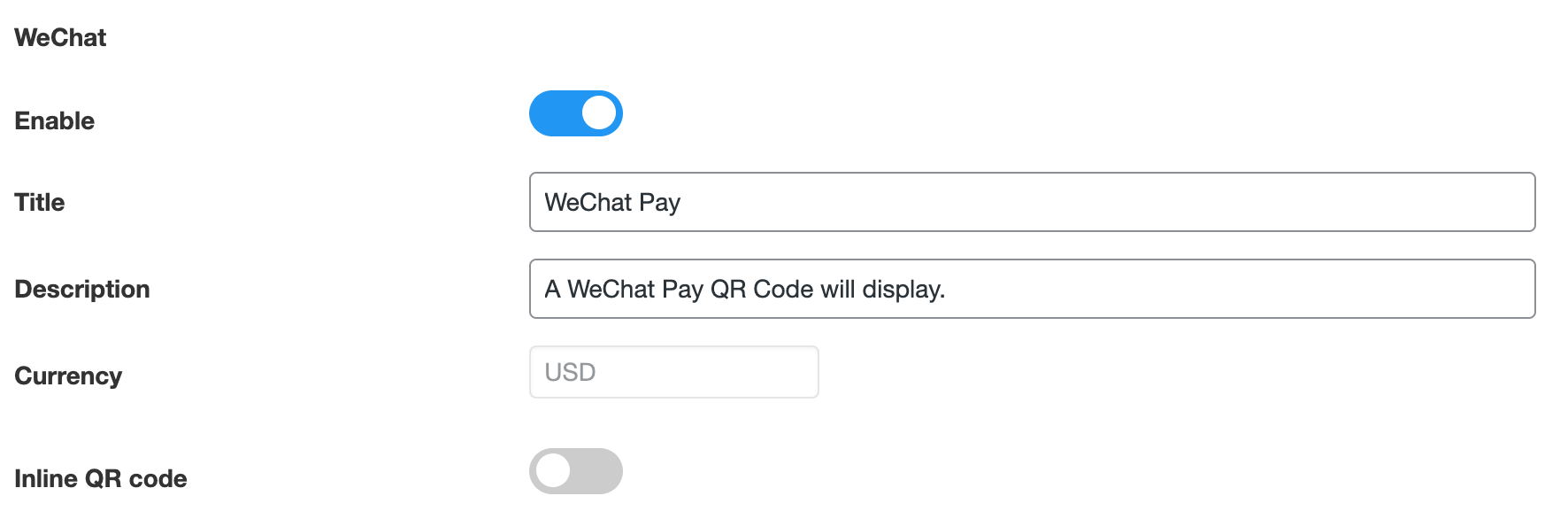
The currency of the WooCommerce checkout must match the payout currency of your Stripe account.
Update the Description and Message boxes to change what appears on the frontend during the checkout process.
### Under "Alipay by China Payments Plugin", you'll see these settings:
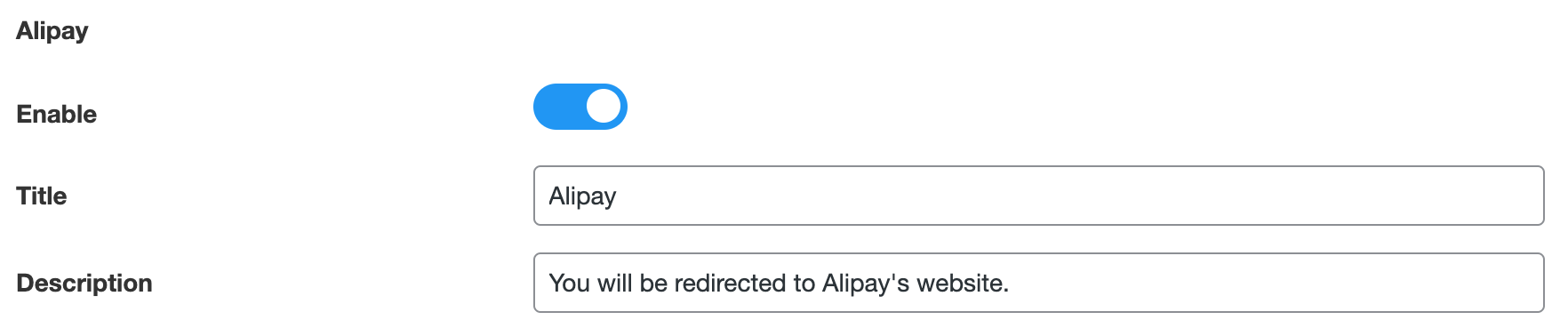
### Under "UnionPay by China Payments Plugin", you'll see these settings:
The UnionPay payment method settings allow you to configure the title and description shown to customers at checkout. UnionPay uses an inline card form powered by Stripe Elements — customers enter their card details directly on your checkout page without being redirected.
See how these settings look for your customers on the frontend in the [checkout flow documentation for WooCommerce](/checkout-flows/woocommerce/).
### WooCommerce Checkout Flow
With the [Inline QR code option](/getting-started/setup-process/woocommerce#under-wechat-pay-by-china-payments-plugin-youll-see-these-settings) left as-is, the QR code will appear like this in your WooCommerce checkout:
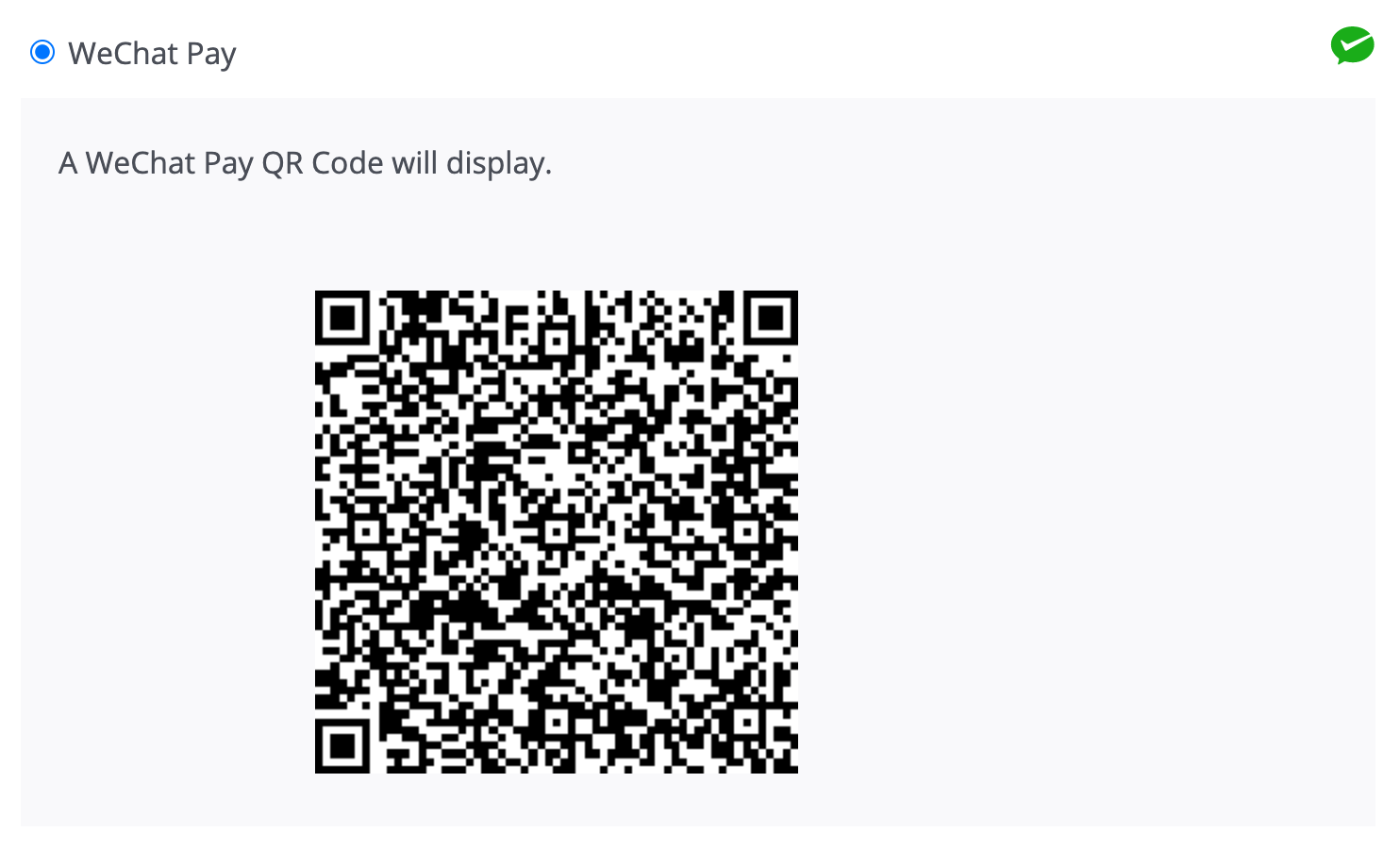
When customers scan the QR code and complete payment on their mobile device, your website will automatically refresh and redirect customers to the payment confirmation page, as set in your WooCommerce settings.
The checkout flow is built to check Stripe for payment confirmation every 5 seconds.
### UnionPay Checkout Flow
When a customer selects UnionPay at checkout, a secure inline card form appears directly on the checkout page. The customer enters their card number, expiration date, and CVC, then clicks "Place Order." The payment is confirmed instantly via Stripe — no redirect is needed.
### Checkout Optimizations (PRO)
PRO users can enable [Checkout Optimizations](/checkout-optimizations-pro/checkout-optimizations/) to automatically localize the entire WooCommerce checkout to Simplified Chinese and display prices in CNY alongside your store currency. See the [Checkout Optimizations](/checkout-optimizations-pro/checkout-optimizations/) documentation for details.
---
Source: https://docs.chinapaymentsplugin.com/checkout-optimizations-pro/checkout-optimizations/
---
title: "Checkout Optimizations"
description: "Learn about the PRO checkout optimization features that help you create a seamless experience for Chinese customers."
url: "https://docs.chinapaymentsplugin.com/checkout-optimizations-pro/checkout-optimizations/"
---
Checkout Optimizations are available exclusively with the **PRO** version of China Payments Plugin.
China Payments Plugin PRO includes a suite of checkout optimization features designed to create a seamless, localized shopping experience for your Chinese customers. These features are managed from the **Optimizations** tab in the plugin settings.
## Features Overview
### Chinese Checkout Localization
Automatically translate your entire WooCommerce storefront, cart, and checkout into Simplified Chinese (简体中文). This includes:
* All checkout form labels and placeholders
* Buttons (Add to Cart, Place Order, Proceed to Checkout, etc.)
* Cart page text and totals
* Order confirmation and thank you page
* Product page elements (category labels, related products, etc.)
* Error messages and validation text
No translation plugin is required — the localization is handled entirely by China Payments Plugin PRO.
### Multi-Currency Display (CNY)
Show prices in both your store's default currency and Chinese Yuan (¥ CNY) side by side. This helps Chinese customers instantly understand pricing without needing to manually convert currencies. The CNY equivalent is displayed throughout:
* Shop / product listing pages
* Individual product pages
* Cart page
* Checkout page
### Real-Time Currency Conversion
The CNY conversion uses a real-time exchange rate API to ensure accurate, up-to-date pricing for your Chinese customers. The exchange rate is fetched automatically — no manual configuration needed.
## How to Enable
1. Navigate to **China Payments Plugin** settings in your WordPress admin.
2. Click the **Optimizations** tab.
3. Toggle **Chinese Localization** and/or **Multi-Currency Display** on or off.
4. Save your settings.
These features require WooCommerce to be installed and active.
## Use Cases
* **eCommerce stores selling to China** — Give your Chinese customers a fully localized shopping experience with prices displayed in CNY.
* **Cross-border businesses** — Reduce cart abandonment by eliminating the confusion of unfamiliar currencies and languages.
* **English teachers and course sellers** — Make your checkout process simple and familiar for Chinese students purchasing courses or memberships.
---
Source: https://docs.chinapaymentsplugin.com/checkout-optimizations-pro/checkout-optimizations/chinese-localization/
---
title: "Chinese Localization"
description: "Learn how to automatically translate your WooCommerce checkout into Simplified Chinese for your Chinese customers."
url: "https://docs.chinapaymentsplugin.com/checkout-optimizations-pro/checkout-optimizations/chinese-localization/"
---
Chinese Localization is a **PRO** feature of China Payments Plugin.
## Overview
The Chinese Localization feature automatically translates your WooCommerce storefront into Simplified Chinese (简体中文). When enabled, all customer-facing text throughout the shopping and checkout experience is presented in Chinese — no additional translation plugins required.
## What Gets Translated
The localization covers the complete WooCommerce shopping flow:
### Shop & Product Pages
* "Add to Cart" button → 加入购物车
* "Category:" label → 分类:
* "Related products" heading → 相关产品
* Sale badge text → 促销!
* Product tabs (Description, Reviews, Additional Information)
### Cart Page
* "Cart" page title → 购物车
* "Proceed to Checkout" button → 去结账
* Cart totals labels (Subtotal, Total)
* Quantity controls and remove item text
* Coupon field labels
### Checkout Page
* All form field labels (First Name, Last Name, Address, etc.)
* "Place Order" button → 提交订单
* Payment method descriptions
* Order summary labels
* Error and validation messages
### Order Confirmation
* "Order received" heading → 订单已收到
* Order details labels
* Thank you message
## How to Enable
1. Go to **China Payments Plugin** → **Optimizations** tab.
2. Toggle **Chinese Localization** to **On**.
3. Save settings.
The changes take effect immediately across your WooCommerce storefront.
This feature translates WooCommerce default text only. Custom text added by other plugins or themes may not be affected.
---
Source: https://docs.chinapaymentsplugin.com/checkout-optimizations-pro/checkout-optimizations/multi-currency-display/
---
title: "Multi-Currency Display"
description: "Learn how to display prices in Chinese Yuan (CNY) alongside your store currency for Chinese customers."
url: "https://docs.chinapaymentsplugin.com/checkout-optimizations-pro/checkout-optimizations/multi-currency-display/"
---
Multi-Currency Display is a **PRO** feature of China Payments Plugin.
## Overview
The Multi-Currency Display feature shows prices in both your store's default currency and Chinese Yuan (¥ CNY) throughout the WooCommerce shopping experience. This helps Chinese customers understand pricing instantly without needing to manually convert currencies.
## How It Works
When enabled, a CNY equivalent price is displayed alongside every price on your store:
* **Shop pages** — Product prices show both currencies
* **Product pages** — Main price and any sale prices include CNY
* **Cart page** — Line item totals and cart totals show CNY equivalents
* **Checkout page** — Order summary displays both currencies
### Example Display
A product priced at **$100.00 USD** might display as:
> $100.00 USD (≈ ¥725.00 CNY)
The exact CNY amount depends on the current exchange rate.
## Exchange Rate
The CNY conversion uses a real-time exchange rate API. The rate is updated automatically to ensure accurate pricing.
You don't need to manually set or update exchange rates — this is handled automatically by the plugin.
## How to Enable
1. Go to **China Payments Plugin** → **Optimizations** tab.
2. Toggle **Multi-Currency Display** to **On**.
3. Save settings.
The CNY prices will appear immediately across your store.
Multi-Currency Display works independently of Chinese Localization — you can enable one or both features based on your needs.
---
Source: https://docs.chinapaymentsplugin.com/common-error-messages/common-alipay-error-messages/
---
title: "Common Alipay Error Messages"
description: "Here are all the error messages we've seen for customers making payments via the Stripe + Alipay integration."
url: "https://docs.chinapaymentsplugin.com/common-error-messages/common-alipay-error-messages/"
---
## Business Transaction Information Incomplete
Receiving this error message means that Alipay has not been activated properly on your Stripe account.
\\
You should contact Stripe to ensure that Alipay is activated on your account. After receiving a successful payment, Alipay will appear here in your Stripe Dashboard Settings:
## Secondary Merchant Status Error
Please refer to Stripe's documentation for the reason of this error:
[https://support.stripe.com/questions/alipay-secondary-merchant-status-error](https://support.stripe.com/questions/alipay-secondary-merchant-status-error)
## Attempting Alipay Checkout in the WeChat Native Browser
If your customer attempts to checkout with Alipay in the WeChat APP's native browser, they'll likely encounter this error below, which requires that the customer should copy and paste the URL into another mobile browser to complete payment.
Soon, we plan to implement a workaround that will detect the WeChat native browser and attempt to force or redirect the customer to another mobile browser so as to prevent this issue.
## Alipay Checkout May Fail When Scanning Desktop QR Code
We have discovered an issue that is known by Stripe and being worked on by their team in collaboration with Alipay.
When customers attempt to scan the QR code generated on a desktop device, they may receive the following error:
**Translation:**
"The order information cannot be read, it is recommended to contact the seller."
**Suggested workaround:**
While Stripe/Alipay resolve this issue, please request your customers to fully complete the checkout process on your website via their mobile device (leave the desktop out of the checkout flow).
As soon as Stripe/Alipay fix this issue, it will work automatically and no update will be needed to the plugin or your site.
---
Source: https://docs.chinapaymentsplugin.com/common-error-messages/common-wechat-pay-error-messages/
---
title: "Common WeChat Pay Error Messages"
description: "Here are all the error messages we've seen for customers making payments via the Stripe + WeChat Pay integration."
url: "https://docs.chinapaymentsplugin.com/common-error-messages/common-wechat-pay-error-messages/"
---
## WeChat QR Code doesn't support "long-press"
Seeing this error means that long-pressing the QR code and trying to extract its data is not a method supported by the Stripe + WeChat Pay integration.
Your customers should attempt to physically scan the QR code with the camera function on the WeChat mobile APP.
## Customers Need Verified WeChat Accounts
The Stripe integration used by our plugin only supports payments from verified WeChat Pay accounts. Generally, these are accounts owned by Chinese citizens or citizens with a national ID from a country where WeChat officially operates.
**Unverified** WeChat users will receive an error message when attempting to make a payment. This is the error message they will see:
## Scanning a QR Code from a Screenshot
The Merchant has completed unusual activity. Currently unable to complete payment by scanning a QR code in a photo.
This means the customer attempted to import the payment QR code into WeChat as a screenshot, which is not supported. Customers **must** complete checkout by physically scanning the QR code with the camera function in the WeChat app.
### The payment method type "wechat\_pay" is invalid. Please ensure the provided type is activated in your dashboard
You may see this method on WooCommerce checkout when WeChat Pay or Alipay are not properly enabled on your Stripe account. Please contact [support@stripe.com](mailto:support@stripe.com) (or live chat via stripe.com dashboard) to get WeChat Pay or Alipay enabled on your account. Typically, these options can be found in your [Stripe Payment Method Settings](https://dashboard.stripe.com/settings/payment_methods).
You can also read our other relevant documentation on this error:
[Why Cant I Activate Alipay Or Wechat Pay In My Stripe Account](/faqs/why-cant-i-activate-alipay-or-wechat-pay-in-my-stripe-account/)
---
Source: https://docs.chinapaymentsplugin.com/common-error-messages/other-errors-+-plugin-conflicts/
---
title: "Other Errors + Plugin Conflicts"
description: "The client secret provided does not match the client secret associated with the PaymentIntent."
url: "https://docs.chinapaymentsplugin.com/common-error-messages/other-errors-+-plugin-conflicts/"
---
### client\_secret does not match
#### Error Message
`The client_secret provided does not match the client_secret associated with the PaymentIntent.`
#### Result
Ensure you have updated the proper Webhook Secret Keys.
### BuddyBoss
When the Private Rest APIs checkbox is enabled in the BuddyBoss Platform Plugin, you may see the following error when attempting to connect Stripe:
`{"code":"bb_rest_authorization_required","message":"Only authenticated users can access the REST API.","data":{"status":401}}`
The solution is uncheck this field in the BuddyBoss plugin settings:

*BuddyBoss Private REST APIs*
---
Source: https://docs.chinapaymentsplugin.com/currencies/supported-currencies/
---
title: "Supported Currencies"
description: "This page is dedicated to covering most of the details about how currency works with your Stripe account when accepting WeChat Pay, Alipay, and UnionPay."
url: "https://docs.chinapaymentsplugin.com/currencies/supported-currencies/"
---
## China Payments Plugin has no currency restrictions
China Payments Plugin imposes absolutely zero currency restrictions on the type of currency you can accept, however, based on the location of your Stripe account and your default Stripe account currency, you're limited to accepting the currencies that Stripe will allow you to accept for each Payment Method.
When accepting WeChat Pay or Alipay, customers will be presented with the default currency of your Stripe account, and once redirected to WeChat Pay or Alipay, then they will be presented with the CNY equivalent to complete payment. You can read more about how it works on this page. See our [Multi-Currency Display](/checkout-optimizations-pro/checkout-optimizations/multi-currency-display/) docs for a workaround or read the Info box immediately below this one for another alternative option.
After lengthy discussions with Stripe support around this issue, Stripe has informed us that you can apply for additional currencies to be accepted via WeChat Pay and Alipay if the Stripe account qualifies. Please contact Stripe support to see if they will fulfill this request. Keep in mind that as of July 02, 2021, it is **not** possible for Stripe to allow CNY as the presentment currency (see below) for WeChat Pay and Alipay, but perhaps other currencies will be possible for your Stripe account.
### **WeChat Pay**
The currency displayed at checkout for WeChat Pay payments must be one of the presentment currencies available for [WeChat Pay](https://stripe.com/docs/sources/wechat-pay) on your Stripe account.
As of Feb 25, 2021, those currencies may be: AUD, CAD, EUR, GBP, HKD, JPY, SGD, or USD. These may change as WeChat Pay becomes available for more and more Stripe countries.
When checking out, you customers will see the payment form with one of the currencies above based on the location of your Stripe account. This is called the **presentment currency**.
After your customer scans the WeChat Pay QR code using their mobile device, they'll be redirected to pay the equivalent converted amount in CNY.
The conversion rate is handled is on the Stripe + WeChat side, so you won't ever see the amount your customer pays in CNY. Your Stripe Dashboard will show the payment amount in your Stripe account's default currency.
For example, if your Stripe account is registered in the US, then your website payment flow for WeChat Pay must display USD to your customers. If in Hong Kong, then HKD, and so on.
The exchange rate is the spot rate determined by the China Construction Bank or China Citic Bank. Please visit [WeChat's website](https://pay.weixin.qq.com/wechatpay_guide/help_faq.shtml) for more details!
When using Stripe Connect, your Stripe account's default currency is pulled in automatically and your payment form will display it accordingly.
If your website is set to accept a different currency than what is supported for WeChat Pay on your Stripe account, then you may need to find a workaround solution, such as a multi-currency plugin that will let you display product prices in multiple currencies. You would then need to "restrict" your China-focused products to only display the supported currency.
We have various error messages throughout our settings that inform admins if this is the case, but please submit a ticket if you're having trouble.
### Alipay
Alipay works very similarly to WeChat Pay in the fact that you can only charge in the currencies supported by Alipay based on the location of your Stripe account (see list above).
### UnionPay
UnionPay card payments support a wide range of currencies through Stripe's standard card payment infrastructure. The currency displayed at checkout will match your store's default currency. Unlike WeChat Pay and Alipay, UnionPay card payments do not require special currency considerations — they work with any currency supported by your Stripe account.
---
Source: https://docs.chinapaymentsplugin.com/faqs/how-do-i-join-the-beta/
---
title: "How do I join the BETA?"
description: "Here's how to join the BETA of China Payments Plugin for early access to new releases and features."
url: "https://docs.chinapaymentsplugin.com/faqs/how-do-i-join-the-beta/"
---
In the WordPress Dashboard, you can opt-in to the beta program directly from your Account page by simply checking this box and agreeing to the disclaimer prompt:
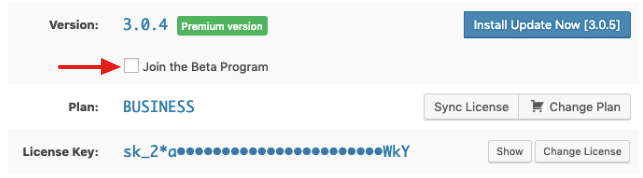
To access the BETA, you must be "opted-in" for marketing in case we need to alert you about potential issues. If you're not opted-in and you don't see the checkbox, you can go to the WordPress Dashboard Plugins page and then click "Opt-in" under the plugin's title China Payments Plugin.
The BETA is available to folks using free or paid plans with corresponding BETA features available for each plan. Sometimes only the paid plugin may have a new BETA feature at any given time, so the free version BETA may be the same as the latest stable release.
The BETA is a development version of the plugin. We **do not** guarantee it will work in all environments and may cause issues on your site. Be sure you have a stable backup handy before installing the BETA version. Please [contact support](https://chinapaymentsplugin.com/support/) to report any issues you may encounter.
---
Source: https://docs.chinapaymentsplugin.com/faqs/how-do-i-override-the-icons-used-in-checkout/
---
title: "How do I override the icons used in checkout?"
description: "This page explains how to modify the icons used in the checkout."
url: "https://docs.chinapaymentsplugin.com/faqs/how-do-i-override-the-icons-used-in-checkout/"
---
For any of the customizations below, download a plugin like [Simple Custom CSS and JS](https://wordpress.org/plugins/custom-css-js/), and add a Custom CSS snippet.
#### **WooCommerce Alipay Icon**
```
/* Override Alipay Icon */
.wc_payment_methods.payment_methods .wc_payment_method.payment_method_china_payments_stripe_alipay label > img {
/* Update the url below with the location of your custom icon */
content: url('https://your-domain.com/wp-content/uploads/custom-alipay-icon.svg') !important;
width: 100px; /* Set the width of the icon as needed */
height: auto; /* Maintain aspect ratio */
}
```
#### WooCommerce WeChat Pay Icon
```
/* Override WeChat Pay Icon */
.wc_payment_methods.payment_methods .wc_payment_method.payment_method_china_payments_stripe_wechat label > img {
/* Update the url below with the location of your custom icon */
content: url('https://your-domain.com/wp-content/uploads/custom-wechat-pay-icon.svg') !important; /* URL to the new icon */
width: 100px; /* Set the width of the icon as needed */
height: auto; /* Maintain aspect ratio */
}
```
---
Source: https://docs.chinapaymentsplugin.com/faqs/how-do-i-remove-all-plugin-data-on-uninstallation/
---
title: "How do I remove all plugin data on uninstallation?"
description: "To remove all plugin data on uninstallation, go to the Other tab:"
url: "https://docs.chinapaymentsplugin.com/faqs/how-do-i-remove-all-plugin-data-on-uninstallation/"
---
To remove all plugin data on uninstallation, go to the Other tab:
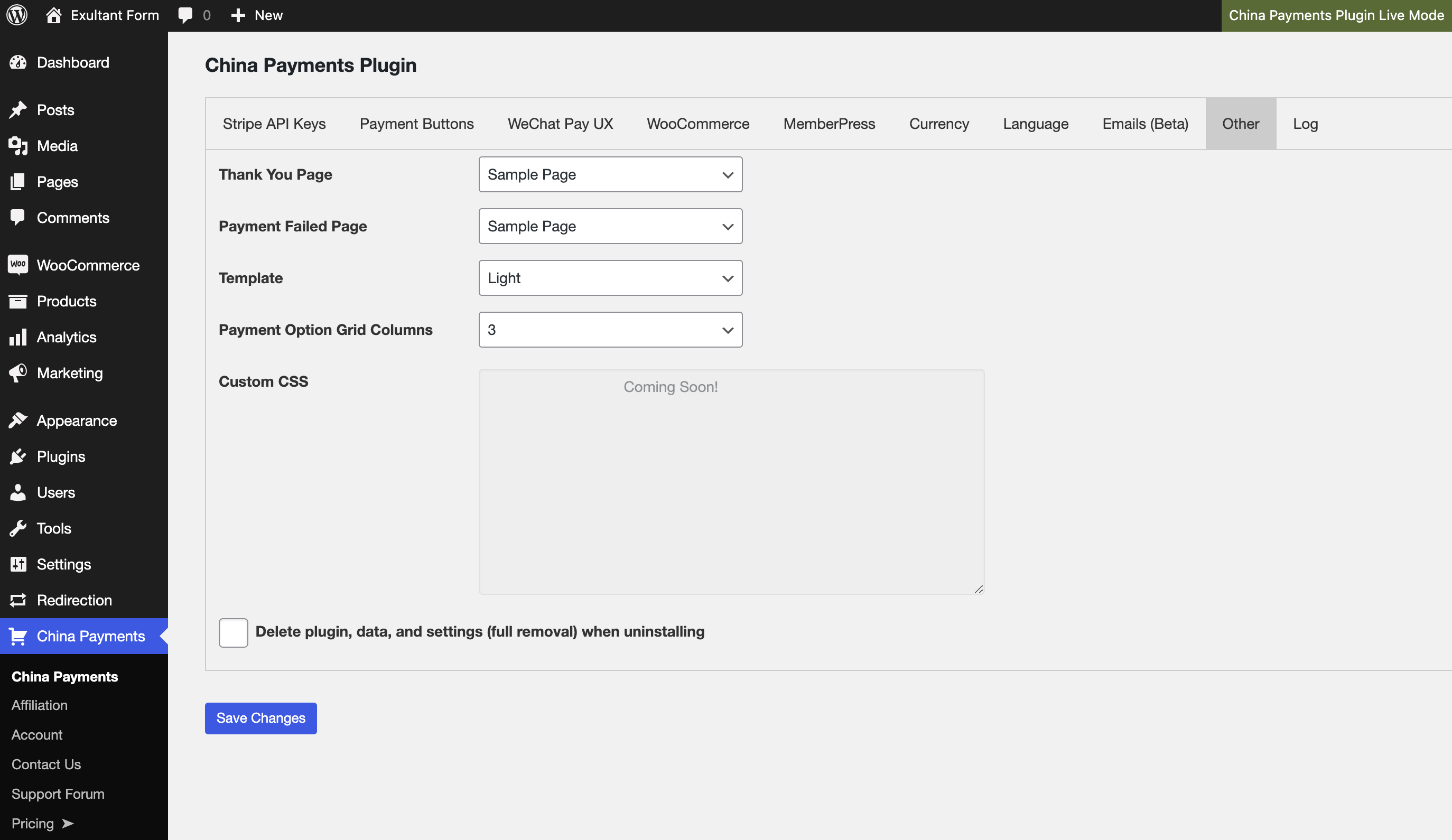
Then, select the box to "Delete, plugin, data, and settings (full removal) when uninstalling.

Be sure to click "Save Changes" at the bottom.
---
Source: https://docs.chinapaymentsplugin.com/faqs/how-do-i-set-up-stripe-webhooks/
---
title: "How do I set up Stripe Webhooks?"
description: "Once you've connected in Stripe in LIVE and TEST modes, you'll see the option to configure Webhook Settings."
url: "https://docs.chinapaymentsplugin.com/faqs/how-do-i-set-up-stripe-webhooks/"
---
Once you've connected in Stripe in LIVE and TEST modes, you'll see the option to configure Webhook Settings.
Webhooks are recommended because they create a more reliable and secure communication method with Stripe to verify and confirm that payments have been processed.
In order for WooCommerce orders to process correctly, Webhooks must be configured properly. This applies specifically to the automated flow followed by [WooCommerce Order Completion](https://woocommerce.com/document/managing-orders/).
Webhook Settings must be configured or LIVE and TEST modes independently. Please follow the instructions for both the LIVE and TEST modal popup windows, as they each have unique Webhook URLs.
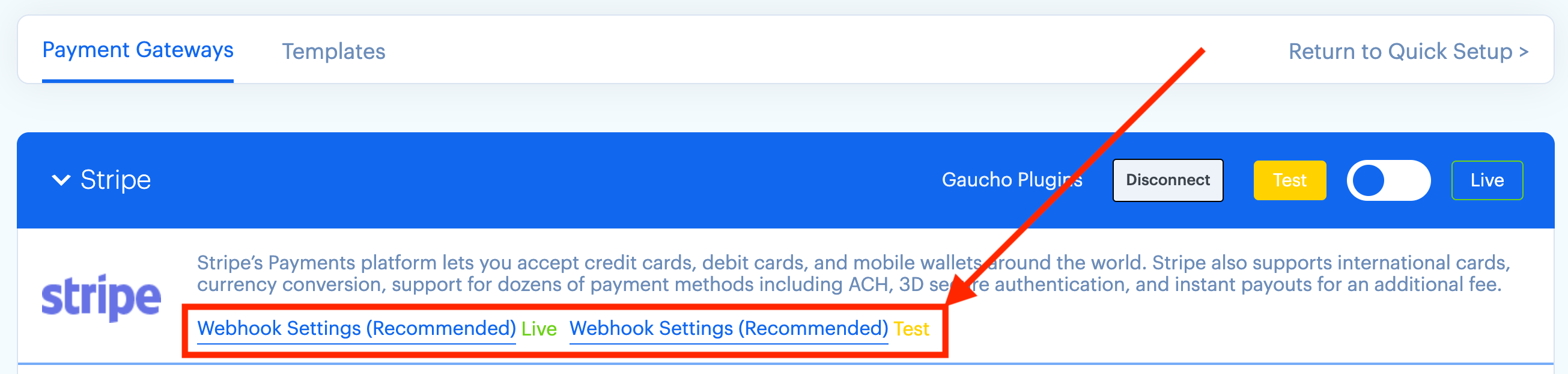
First, copy your webhook URL from the plugin settings:
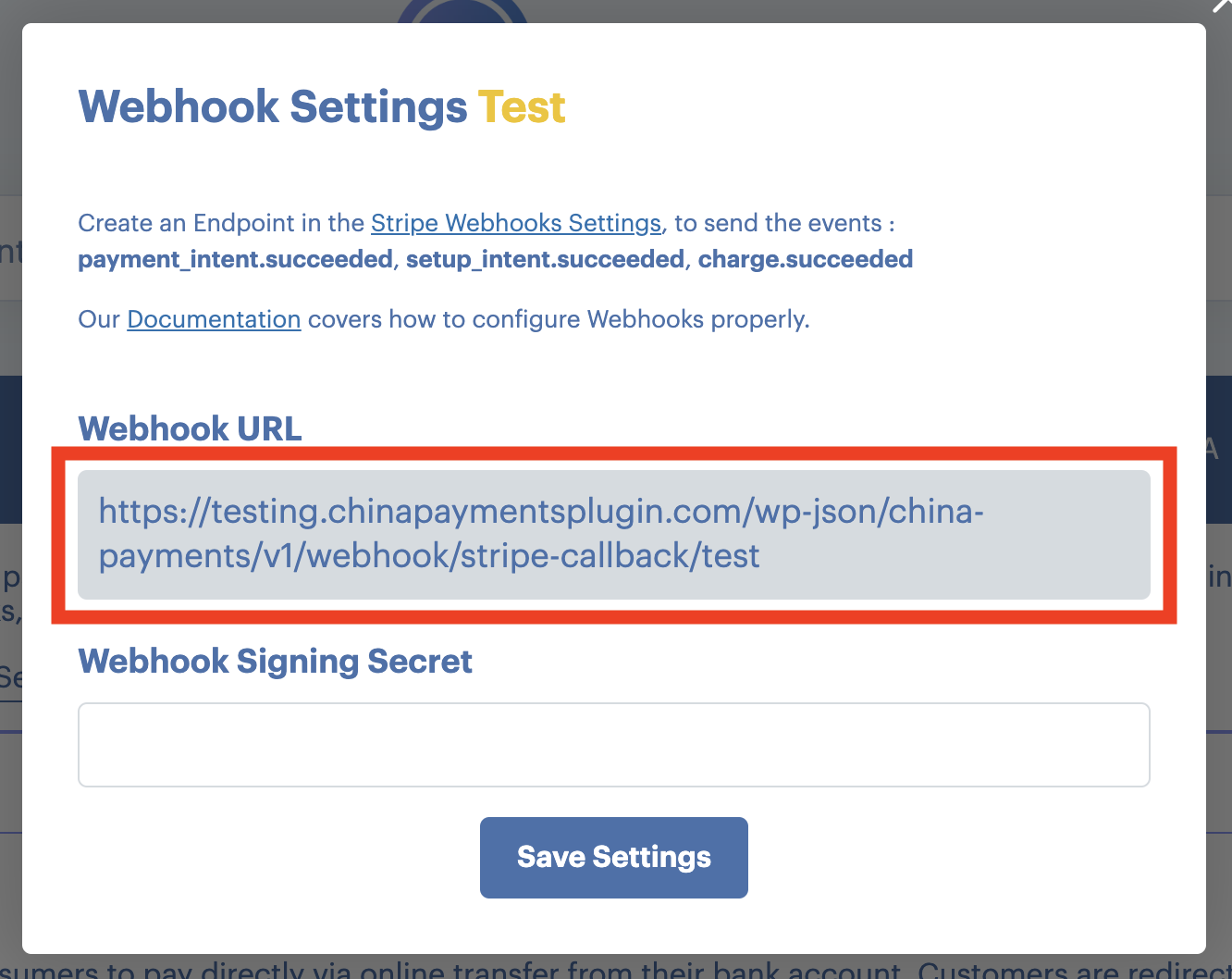
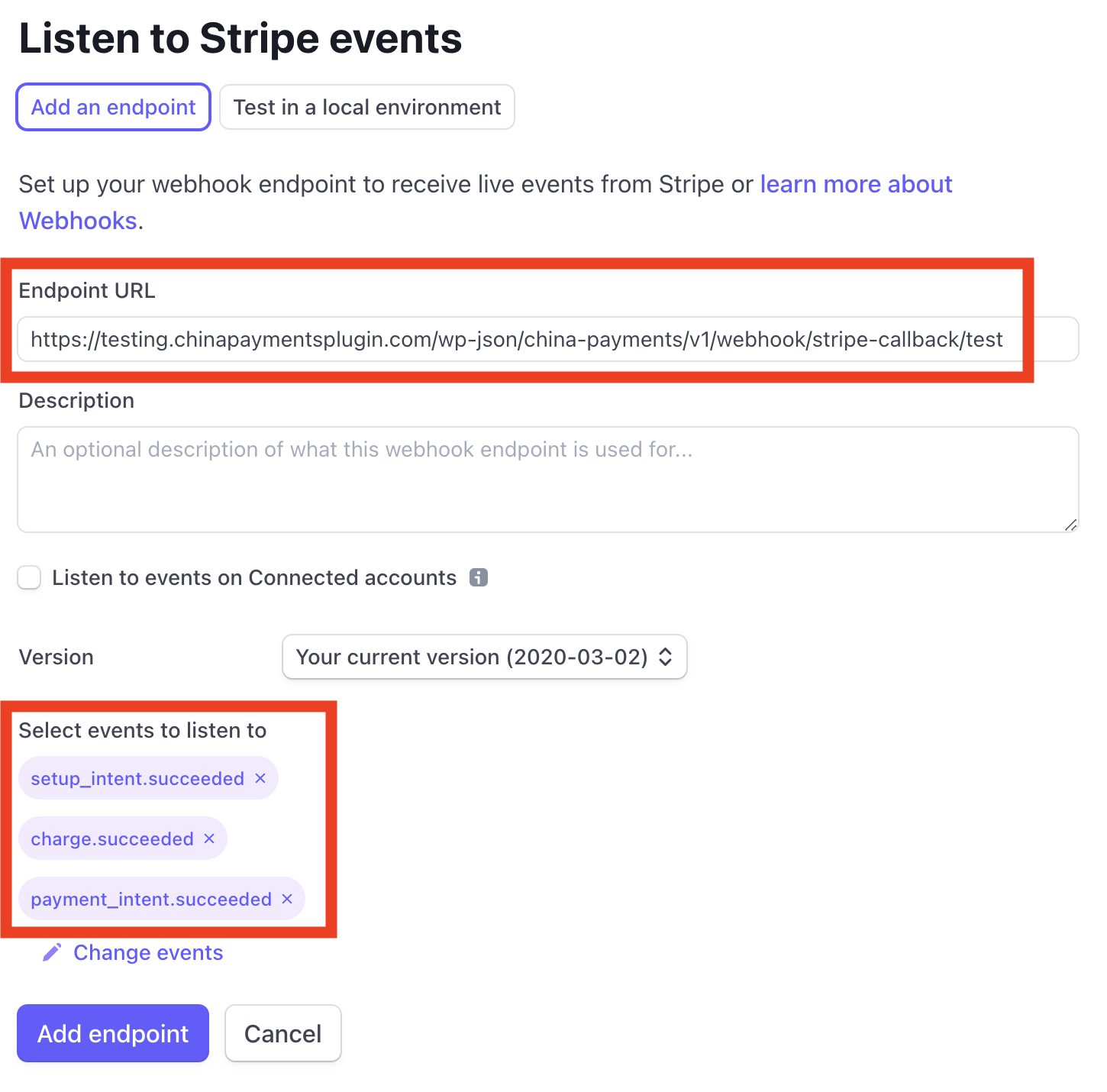
Go to your [Stripe Webhooks Settings](https://dashboard.stripe.com/webhooks) and click "Add Endpoint."
Enter the Endpoint URL.
Select 3 events to listen to, including:
* `payment_intent.succeeded`
* `setup_intent.succeeded`
* `charge.succeeded`
Your settings should be configured like this:
Be sure to replace the Endpoint URL with the Webhook URL provided in the plugin settings. Be sure to also select all 3 events.
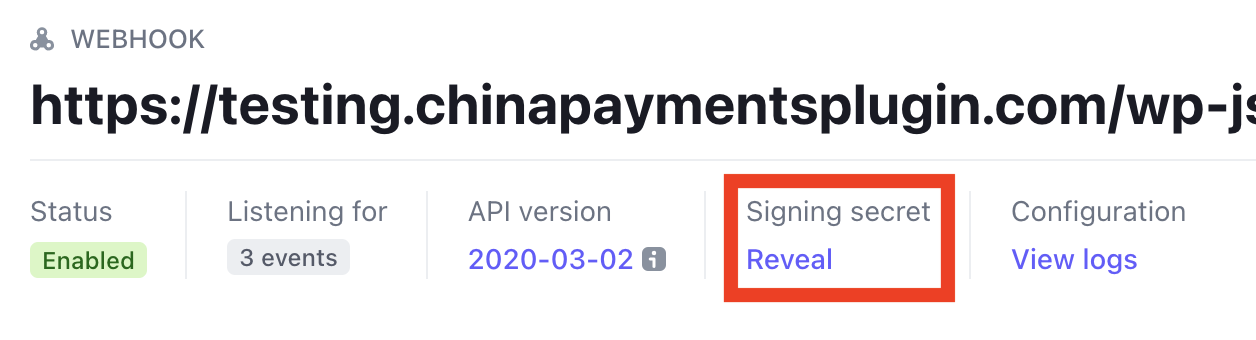
Click Add Endpoint, and then Reveal your Signing Secret:
Paste the Signing Secret into the plugin Webhook Settings:
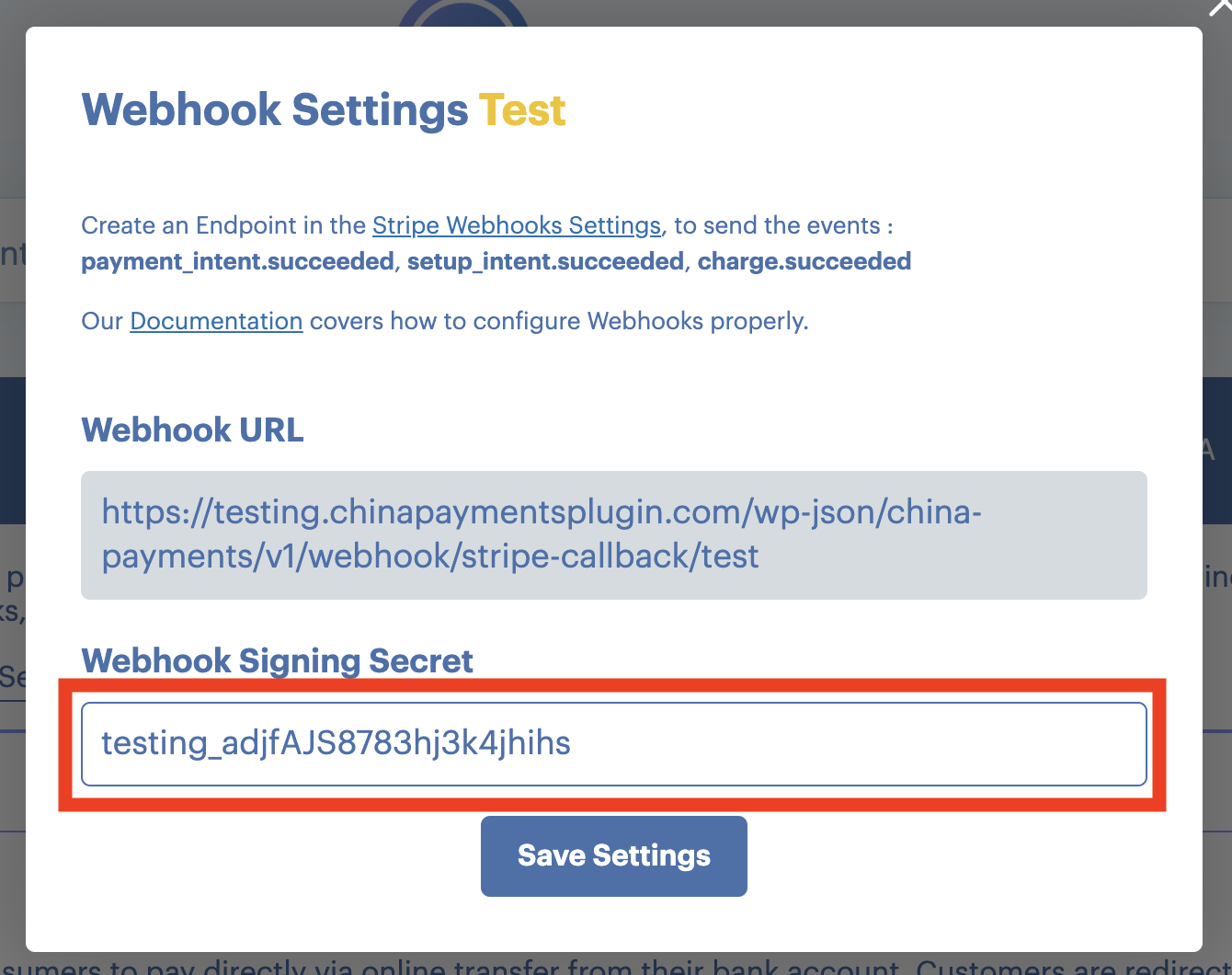
Be sure to click Save Settings, and follow the exact same process for both LIVE and TEST modes.
---
Source: https://docs.chinapaymentsplugin.com/faqs/how-do-wechat-pay-and-alipay-work/
---
title: "How do WeChat Pay and Alipay work?"
description: "This video covers all the different ways to get paid by Chinese customers. Though the video was created in 2018, many of the topics still apply today. If/when there are major updates, we will release a new video building on the topics from the original publish"
url: "https://docs.chinapaymentsplugin.com/faqs/how-do-wechat-pay-and-alipay-work/"
---
This video covers all the different ways to get paid by Chinese customers. Though the video was created in 2018, many of the topics still apply today. If/when there are major updates, we will release a new video building on the topics from the original publisher.
**China Payments Plugin** fits into the segment beginning at 8:00 - How to Get Paid (without setting up a Chinese company).
**China Payments Plugin** enables you to utilize the **Stripe Sources API** to accept WeChat Pay (Beta) and Alipay on your WordPress website.
[How to Sell Online to Mainland China from Abroad](https://youtu.be/bYSe5fWjdlQ?t=480)
---
Source: https://docs.chinapaymentsplugin.com/faqs/how-does-china-payments-plugin-work/
---
title: "How does China Payments Plugin Work?"
description: "China Payments Plugin is a payment plugin for WordPress that focuses on WeChat Pay, Alipay, and UnionPay."
url: "https://docs.chinapaymentsplugin.com/faqs/how-does-china-payments-plugin-work/"
---
[China Payments Plugin](https://chinapaymentsplugin.com/) is a payment plugin for WordPress that focuses on WeChat Pay, Alipay, and UnionPay.
To use the China Payments plugin, you need a [Stripe](https://stripe.com/) account in a [Stripe supported country](https://stripe.com/global/).
If you or your business can register a Stripe account, you can then accept payments using the China Payments form on your website.
### Payment Methods Currently Supported
We currently support the following payment methods:
* UnionPay cards
* WeChat Pay
* Alipay
---
Source: https://docs.chinapaymentsplugin.com/faqs/how-long-are-wechat-pay-qr-codes-valid/
---
title: "How long are WeChat Pay QR codes valid?"
description: "WeChat Pay QR codes generated by Stripe via China Payments Plugin are valid for up to 6 hours or until 23:45 China Standard Time (GMT+8) due to Chinese government restrictions around the settlement."
url: "https://docs.chinapaymentsplugin.com/faqs/how-long-are-wechat-pay-qr-codes-valid/"
---
WeChat Pay QR codes generated by Stripe via China Payments Plugin are valid for up to 6 hours or until 23:45 China Standard Time (GMT+8) due to Chinese government restrictions around the settlement.
---
Source: https://docs.chinapaymentsplugin.com/faqs/what-is-china-payments-plugin/
---
title: "What is China Payments Plugin?"
description: "China Payments Plugin is a payment form plugin for WordPress."
url: "https://docs.chinapaymentsplugin.com/faqs/what-is-china-payments-plugin/"
---
[China Payments Plugin](https://chinapaymentsplugin.com/) is a payment form plugin for WordPress.
Our plugin's purpose is to integrate with the [Stripe payment gateway](https://stripe.com/) and allow you to take advantage of all the [global payment methods](https://stripe.com/docs/payments/payment-methods) supported by Stripe.
## Payment Methods Currently Supported
We currently support the following payment methods as part of the payment form:
* UnionPay cards
* WeChat Pay
* Alipay
## Planned Integrations
The latest details can be found on the Stripe website, but as of late 2019, the Stripe API supports the payment methods listed below:
* Cards
* Dynamic 3D Secure
* Card present
* Alipay
* ACH Debit
* ACH Credit Transfer
* Bancontact
* EPS
* Giropay
* iDEAL
* Multibanco
* Przelewy24
* SEPA Direct Debit
* SOFORT
* WeChat Pay
We plan to include them all in our payment form plugin eventually.
---
Source: https://docs.chinapaymentsplugin.com/faqs/whats-the-total-cost-of-using-china-payments-plugin/
---
title: "What's the total cost of using China Payments Plugin?"
description: "The free version of China Payments Plugin available on WordPress.org supports WeChat Pay, Alipay, and UnionPay payments via Stripe out of the box."
url: "https://docs.chinapaymentsplugin.com/faqs/whats-the-total-cost-of-using-china-payments-plugin/"
---
The [free version](https://wordpress.org/plugins/wp-stripe-global-payments/) of China Payments Plugin available on WordPress.org supports WeChat Pay, Alipay, and UnionPay payments via Stripe out of the box.
There is a small 2% transaction fee added to Stripe transaction fees in order to help us continue supporting the free version of the plugin.
You can upgrade to the paid version of the plugin for the following benefits:
* No 2% transaction fee
* Chinese checkout localization (Simplified Chinese)
* Multi-currency display (CNY alongside your store currency)
* Real-time currency conversion to CNY
---
Source: https://docs.chinapaymentsplugin.com/faqs/why-cant-i-activate-alipay-or-wechat-pay-in-my-stripe-account/
---
title: "Why can't I activate Alipay or WeChat Pay in my Stripe account?"
description: "When applying to use Alipay or WeChat Pay in your Stripe account, you must ensure you are a supported business type."
url: "https://docs.chinapaymentsplugin.com/faqs/why-cant-i-activate-alipay-or-wechat-pay-in-my-stripe-account/"
---
When applying to use Alipay or WeChat Pay in your Stripe account, you must ensure you are a supported business type.
Here is a list of Alipay prohibited businesses per Stripe documentation:
[Open video](https://support.stripe.com/questions/alipay-prohibited-businesses)
Here is a list of WeChat Pay prohibited businesses, as provided to our team by Stripe support. Based on our request, Stripe will hopefully be creating documentation about this:
[Open video](https://pay.weixin.qq.com/wechatpay_guide/proper_rule.shtml)
---
Source: https://docs.chinapaymentsplugin.com/getting-started/activating-payment-methods/
---
title: "Activating Payment Methods"
description: "Activating WeChat Pay, Alipay, and UnionPay on Stripe can be a little tricky, so we wrote this quick overview to help out."
url: "https://docs.chinapaymentsplugin.com/getting-started/activating-payment-methods/"
---
To use China Payments Plugin, you need to have WeChat Pay, Alipay, or UnionPay activated in your Stripe account.
To check if your payment settings are activated correctly, log into the Stripe Dashboard and go the Settings > [Payment Methods](https://dashboard.stripe.com/settings/payment_methods). If your desired payment options are supported for your Stripe account, you will see them under the Eligible tab:

If they aren't activated, click the "Activate" button to enable the payment method or apply for activation. WeChat Pay has an application that you need to complete, and Alipay has a separate process. Both activation flows are subject to change by Stripe.
UnionPay card payments are typically available by default on most Stripe accounts since they are processed through Stripe's standard card payment infrastructure. No separate activation is usually required.
Be sure your business is in compliance with the [WeChat Payment System User Service Agreement](https://pay.weixin.qq.com/wechatpay_guide/proper_rule.shtml) or [Alipay Prohibited Businesses list](https://support.stripe.com/questions/alipay-prohibited-businesses) when answering the activation questions.
Once you receive a successful payment with each payment method, you will see the "Live" badge next to them under the Live tab:
Alipay must be activated separately and supports one-time payments out of the box.
To enable Alipay subscription payments, you must make the request to Stripe support directly based on [this article](https://support.stripe.com/questions/enabling-recurring-charges-for-alipay) in their documentation.
After a discussion with Stripe support as of Dec 2020, they stated they plan to add a button in the dashboard and/or automate the ability to activate Alipay subscriptions on your Stripe account in the future.
###
---
Source: https://docs.chinapaymentsplugin.com/getting-started/setup-process/
---
title: "Quick Setup"
description: "This is an overview of the Quick Setup process for China Payments Plugin."
url: "https://docs.chinapaymentsplugin.com/getting-started/setup-process/"
---
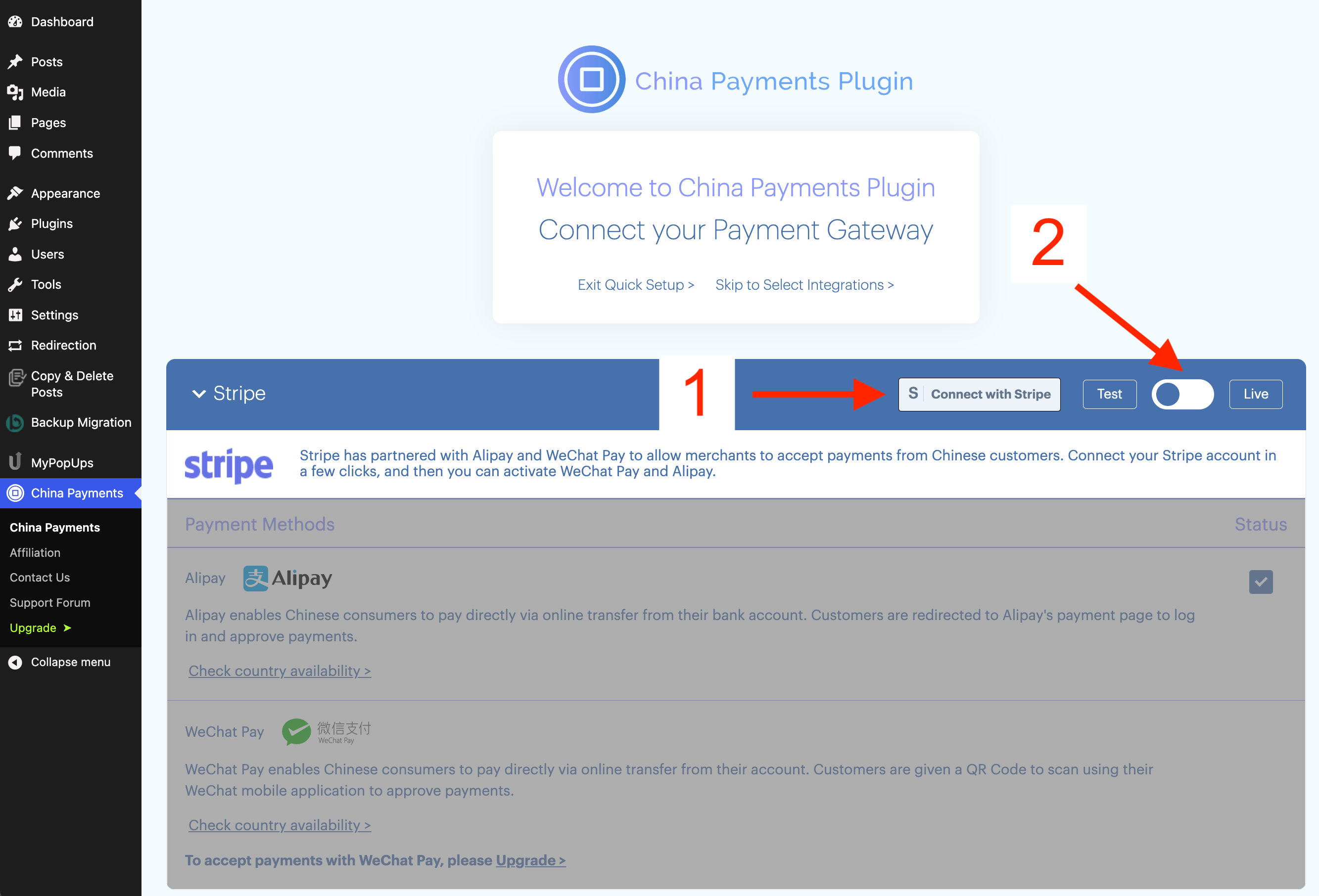
After installing China Payments Plugin in your WordPress Dashboard, you'll arrive to the Quick Setup Screen.
The first step is to connect your Stripe account (#1 in screenshot). You must connect Stripe independently in LIVE and TEST modes by using the switcher (#2 in screenshot).
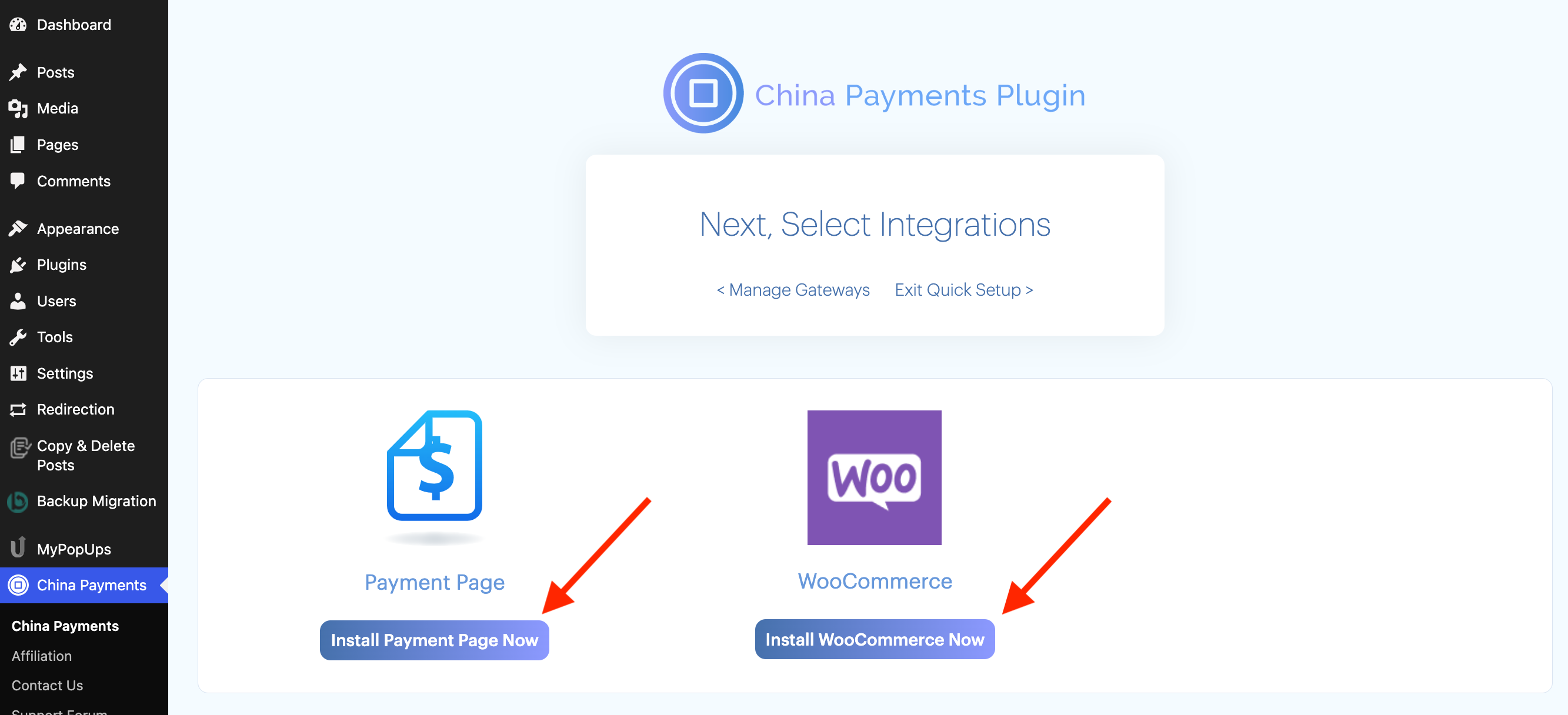
After connecting Stripe, you'll be directed to the Integrations step. Select any of the available plugin integrations to install:
Ensure all payment methods are [fully activated on your Stripe account](/getting-started/activating-payment-methods/).
If using WooCommerce, [configuring Webhooks](/faqs/how-do-i-set-up-stripe-webhooks/) is strongly recommended.
Please review our other docs to configure each of the Integrations:
[WooCommerce](/checkout-flows/woocommerce/)[Payment Page (payment form)](/checkout-flows/embeddable-payment-buttons/)[MemberPress](/checkout-flows/memberpress/)
---
Source: https://docs.chinapaymentsplugin.com/payment-gateways/planned-payment-gateways/
---
title: "Planned Payment Gateways"
description: "There are a few gateways planned for China Payments Plugin!"
url: "https://docs.chinapaymentsplugin.com/payment-gateways/planned-payment-gateways/"
---
### We are planning to integrate the following payment gateways in China Payments Plugin:
* PayPal
* WeChat Official Accounts
* Union Pay (via 3rd party)
Contact [support](https://chinapaymentsplugin.com/support/) if you'd like to request another gateway or other features.
---
Source: https://docs.chinapaymentsplugin.com/payment-gateways/stripe/
---
title: "Stripe"
description: "Stripe is one of the supported payment gateways for China Payments Plugin. Here's why we decided to use Stripe and more details about it."
url: "https://docs.chinapaymentsplugin.com/payment-gateways/stripe/"
---
Stripe is a payment gateway that allows you to accept payments from [many different global payment providers](https://stripe.com/docs/payments/payment-methods), including UnionPay cards, mobile wallets such as WeChat Pay and Alipay, and more.
To use Stripe on your WordPress site to accept payments for your products or services, your website must be able to connect to Stripe—this is why we created the China Payments form plugin! Once you've created your Stripe account in any [supported Stripe country](https://stripe.com/global/), you can install and set up China Payments plugin on your WordPress website.
---
Source: https://docs.chinapaymentsplugin.com/payment-methods/alipay/
---
title: "Alipay"
description: "Here's an overview of how Alipay works in relation to China Payments Plugin."
url: "https://docs.chinapaymentsplugin.com/payment-methods/alipay/"
---
Alipay is one of the most widely used payment methods in China. Accepting Alipay on your website can expose your business to a huge number of potential customers by offering them a trusted payment method.
## Why Stripe + Alipay?
Stripe has created a partnership with Alipay that allows you or your business to accept international (cross-border) payments from Chinese consumers.
For more information, check our documentation on the [Alipay User Experience](/payment-methods/alipay/alipay-user-experience/).
---
Source: https://docs.chinapaymentsplugin.com/payment-methods/alipay/alipay-user-experience/
---
title: "Alipay User Experience"
description: "The Alipay User Experience (UX) is different when customers are using a mobile or a desktop device. Here are the steps for each checkout flow."
url: "https://docs.chinapaymentsplugin.com/payment-methods/alipay/alipay-user-experience/"
---
No matter what checkout flow you have set up, customers are redirected to the Alipay website or mobile APP to complete payment, depending on if they are using a desktop or mobile device.
## Alipay User Experience on Desktop
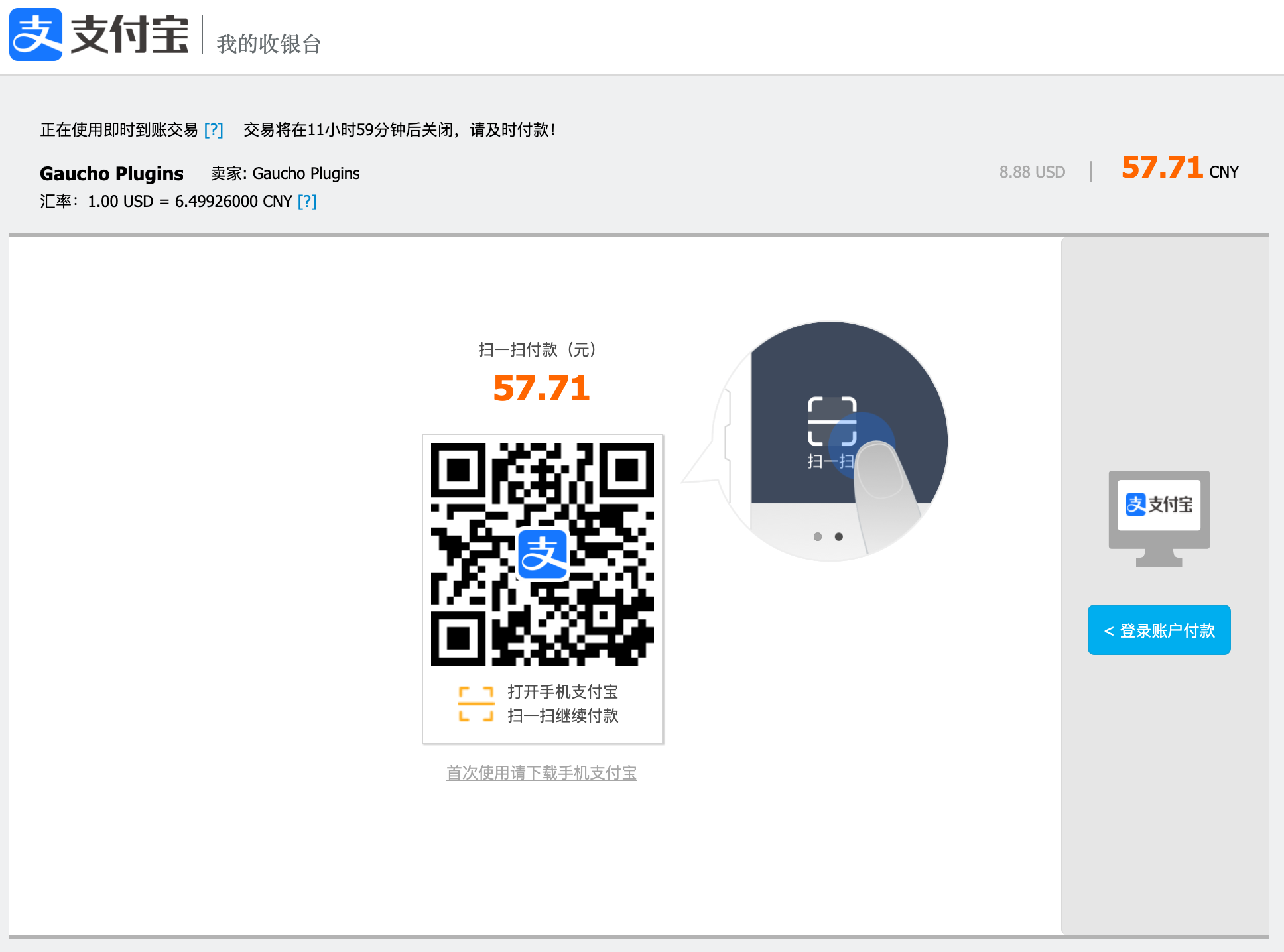
After clicking submit payment on your website, customers are redirected to the Alipay website.
They are given the option to scan a QR code with their mobile device (most common), or login using their Alipay account details (less common).
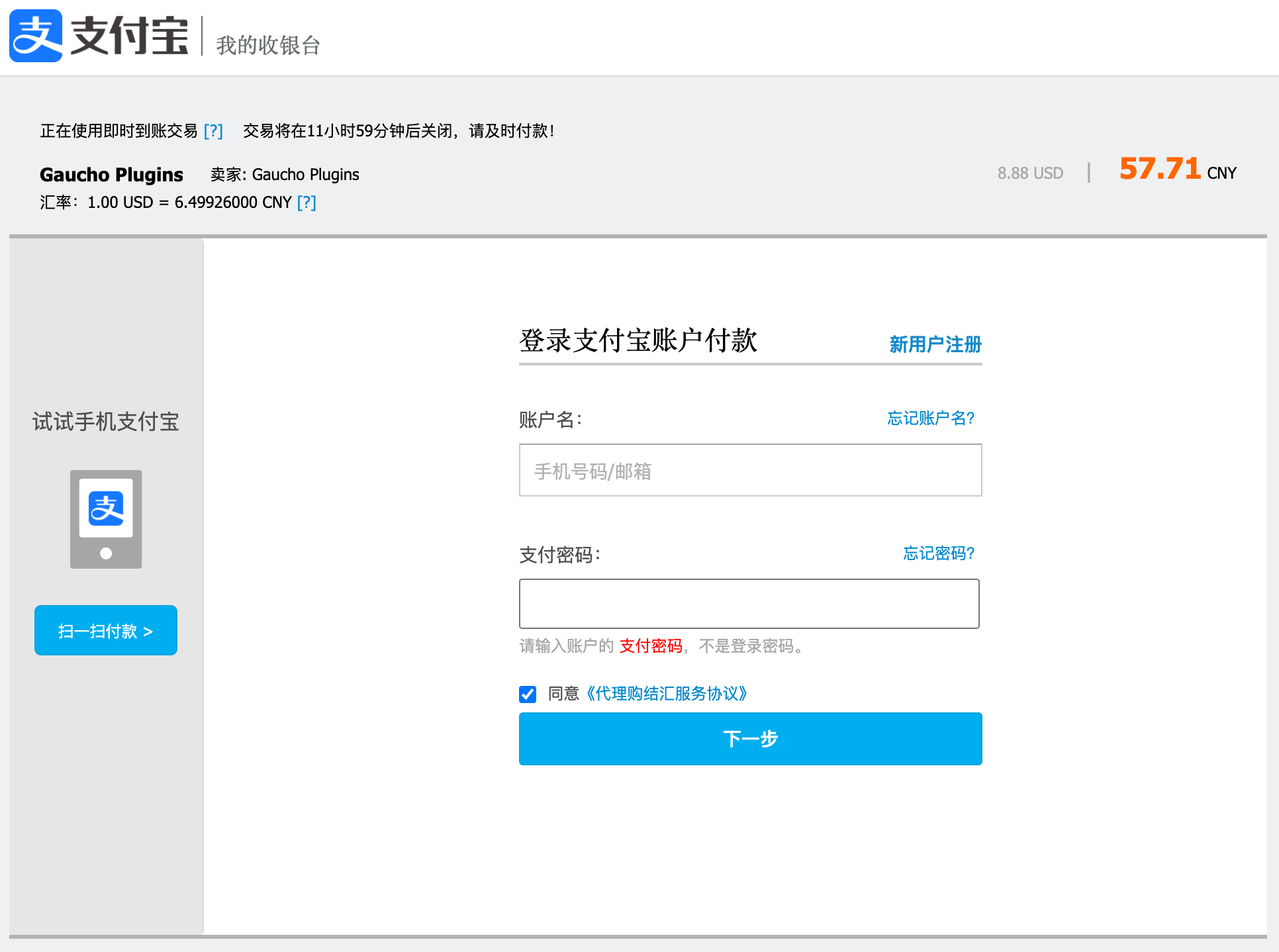
See our documentation on [Common Alipay Error Messages](/common-error-messages/common-alipay-error-messages/) if your customers are encountering checkout issues.
## Alipay User Experience on Mobile
After clicking submit payment on your website, customers are presented with this screen, giving them the option to open the Alipay mobile APP to complete payment, or open the Alipay website to complete payment, as above.
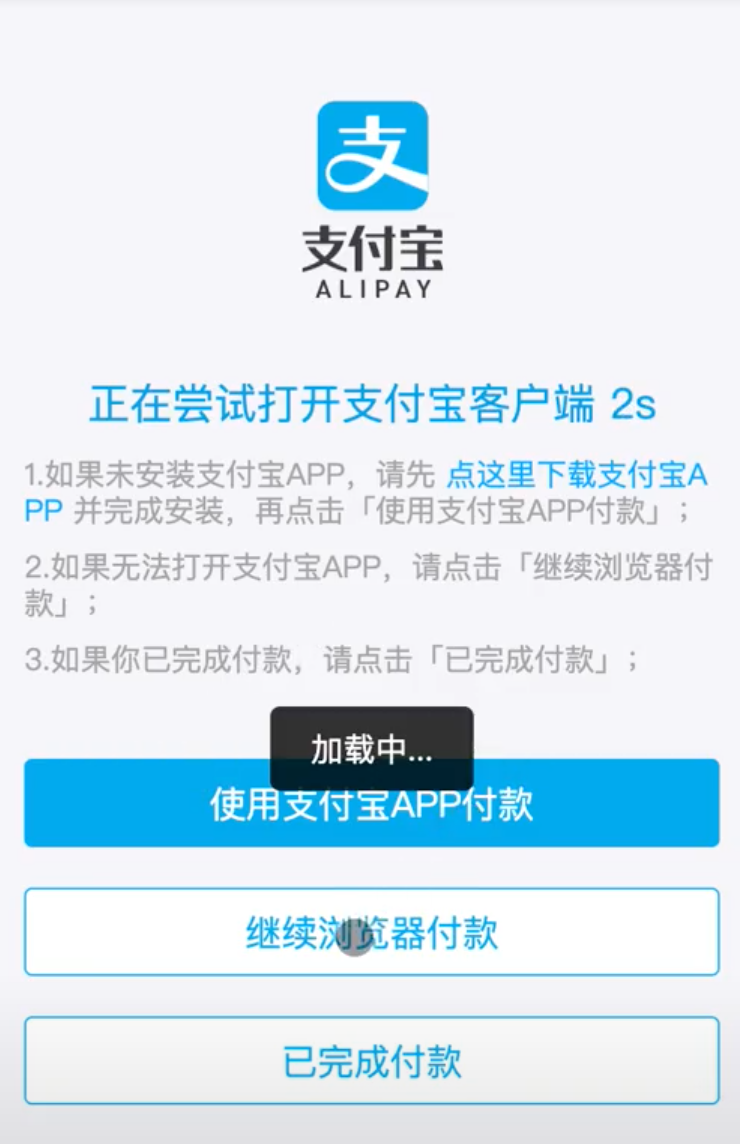
If they select the mobile APP option, they will then complete the checkout process on the Alipay mobile APP, and then the mobile APP will redirect them to your payment confirmation page.
See our documentation on [Common Alipay Error Messages](/common-error-messages/common-alipay-error-messages/) if your customers are encountering checkout issues.
---
Source: https://docs.chinapaymentsplugin.com/payment-methods/unionpay/
---
title: "UnionPay"
description: "Here's an overview of how UnionPay works in relation to China Payments Plugin."
url: "https://docs.chinapaymentsplugin.com/payment-methods/unionpay/"
---
UnionPay is the largest card payment network in China and one of the largest in the world. Accepting UnionPay on your website allows you to offer Chinese customers a familiar and trusted card payment method directly on your checkout page.
## Why Stripe + UnionPay?
Stripe supports UnionPay card payments, allowing you or your business to accept card payments from Chinese consumers who hold UnionPay-branded debit and credit cards. This integration works seamlessly through the Stripe API, just like WeChat Pay and Alipay.
## Inline Card Entry
Unlike WeChat Pay (which uses a QR code) or Alipay (which redirects to the Alipay website), UnionPay card payments are entered **directly on your checkout page**. There is no redirect — customers enter their card number, expiration date, and CVC in a secure, Stripe-powered inline card form embedded in your WooCommerce checkout.
The inline card form is powered by Stripe Elements, which means card details are handled securely by Stripe and never touch your server. This keeps your checkout fully PCI compliant.
## Supported Currencies
UnionPay card payments support a wide range of currencies through Stripe. The currency displayed at checkout will match your store's default currency. For the full list of supported currencies, refer to the [Stripe documentation on UnionPay](https://stripe.com/docs/payments/cards).
For more information, check our documentation on the [UnionPay User Experience](/payment-methods/unionpay/unionpay-user-experience/).
---
Source: https://docs.chinapaymentsplugin.com/payment-methods/unionpay/unionpay-user-experience/
---
title: "UnionPay User Experience"
description: "Learn about the UnionPay checkout experience for your customers on desktop and mobile devices."
url: "https://docs.chinapaymentsplugin.com/payment-methods/unionpay/unionpay-user-experience/"
---
## Desktop Experience
When a customer selects UnionPay as their payment method during WooCommerce checkout, they will see a secure inline card form directly on the checkout page. The form includes fields for:
* Card number
* Expiration date
* CVC
After entering their card details, the customer clicks the "Place Order" button. The payment is confirmed instantly via Stripe, and the customer is redirected to the order confirmation page.
There is no redirect to an external page — the entire payment flow happens on your checkout page for a seamless experience.
## Mobile Experience
On mobile devices, the UnionPay inline card form is fully responsive and works seamlessly in all mobile browsers. Customers enter their card details just as they would on desktop, and payment is confirmed instantly.
## How It Differs from WeChat Pay and Alipay
| Feature | UnionPay | WeChat Pay | Alipay |
| --- | --- | --- | --- |
| **Input Method** | Inline card form | QR code scan | Redirect to Alipay |
| **Redirect Required** | No | No | Yes |
| **Mobile UX** | Card form in browser | QR code on another device | Redirect in mobile browser |
| **Payment Confirmation** | Instant | Polling (every 5s) | Redirect back to site |
## Test Card Numbers
When testing UnionPay payments in Stripe test mode, you can use the following test card number:
* **Card Number:** `6200 0000 0000 0005`
* **Expiration:** Any future date
* **CVC:** Any 3 digits
For more test card numbers, refer to the [Stripe testing documentation](https://stripe.com/docs/testing#cards).
---
Source: https://docs.chinapaymentsplugin.com/payment-methods/wechat-pay/
---
title: "WeChat Pay"
description: "Here's an overview of how WeChat Pay works in relation to China Payments Plugin."
url: "https://docs.chinapaymentsplugin.com/payment-methods/wechat-pay/"
---
WeChat Pay is one of the most widely used payment methods in China. Accepting WeChat Pay on your website can expose your business to a huge number of potential customers by offering them a trusted payment method.
## Why Stripe + WeChat Pay?
Stripe has created a partnership with WeChat Pay that allows you or your business to accept international (cross-border) payments from Chinese consumers.
### Identity Verification restrictions
The WeChat Pay + Stripe partnership means that ***only Chinese consumers with identity verified WeChat accounts can make payments.***
Users of WeChat and Alipay who have not [verified their identity](https://gauchoplugins.freshdesk.com/a/solutions/articles/66000184045) cannot make payments via this Stripe integration. This is simply because the current partnership between Stripe and WeChat and/or Chinese regulations do not allow this. Unverified WeChat users who do not have a verified WeChat account will receive an error message if they try to make a payment on your website.
Should this payment situation change in the future, we will update our documentation.
### Cross-Border Settlements
Verified WeChat Pay users who make a payment are considered to be making a "foreign transaction". This is because it is Chinese consumers paying a foreign entity (you or your business) through your Stripe account integration.
To make this foreign transaction possible, WeChat Pay uses [cross-border settlement](https://pay.weixin.qq.com/wechatpay_guide/intro_settle.shtml). This means that WeChat Pay users will pay in their local currency, CNY, and WeChat will then send your Stripe account the exact amount you charged in your Stripe account's local currency.
For example, let's say you're selling a product or service for $100 on your website. The payment form will display $100 and the forecasted CNY exchange rate. When the WeChat Pay user clicks "Submit Payment" and scans the QR code with WeChat, the $100 is converted to CNY and the corresponding amount will be paid in CNY. WeChat Pay handles the exchange rate. Your Stripe account will show the payment method as WeChat Pay and the amount received in your account will be $100. Stripe then deducts the [transaction fees](https://stripe.com/pricing). You will not pay any exchange rate fees because WeChat Pay manages the exchange rate for the customer.
See our [User Experience](/payment-methods/wechat-pay/wechat-pay-user-experience/) documentation for other details about how it works.
---
Source: https://docs.chinapaymentsplugin.com/payment-methods/wechat-pay/wechat-pay-user-experience/
---
title: "WeChat Pay User Experience"
description: "The WeChat Pay User Experience (UX) is different when customers are using a mobile or a desktop device. Here are the steps for each checkout flow."
url: "https://docs.chinapaymentsplugin.com/payment-methods/wechat-pay/wechat-pay-user-experience/"
---
## WeChat Pay User Experience on Desktop
1\. The customers select WeChat Pay from the payment options and the payment form appears.
###
2\. The customers must fill out the WeChat Pay payment form.
3\. After clicking "Submit Payment", a unique QR code is generated for the customers to scan. Since customers are using a desktop device, they need to scan the QR code with their WeChat mobile app.
4\. Scan the QR code with a mobile device.
5\. Authorize the payment.
After completing payment through the WeChat mobile app, customers are then redirected to your designated "Thank You page" in their mobile browser. The QR code generated by the form on the desktop device is no longer valid.
See our documentation on [Common WeChat Pay Error Messages](/common-error-messages/common-wechat-pay-error-messages/) if your customers are experiencing checkout issues.
## WeChat User Experience on Mobile
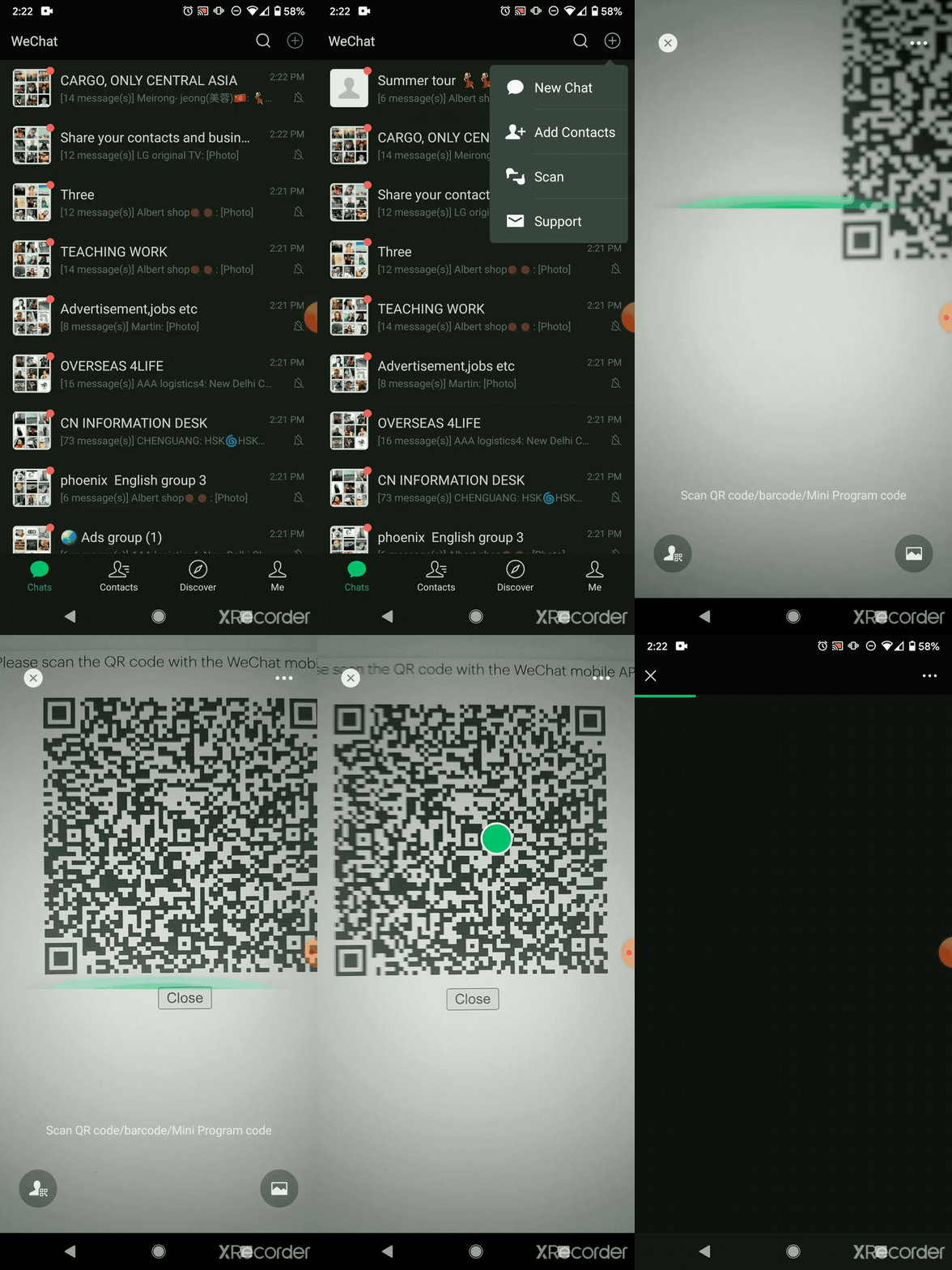
1\. Customer arrives to checkout page w/ WeChat Pay QR code
2\. Customer MUST physically scan the QR Code w/ the WeChat APP
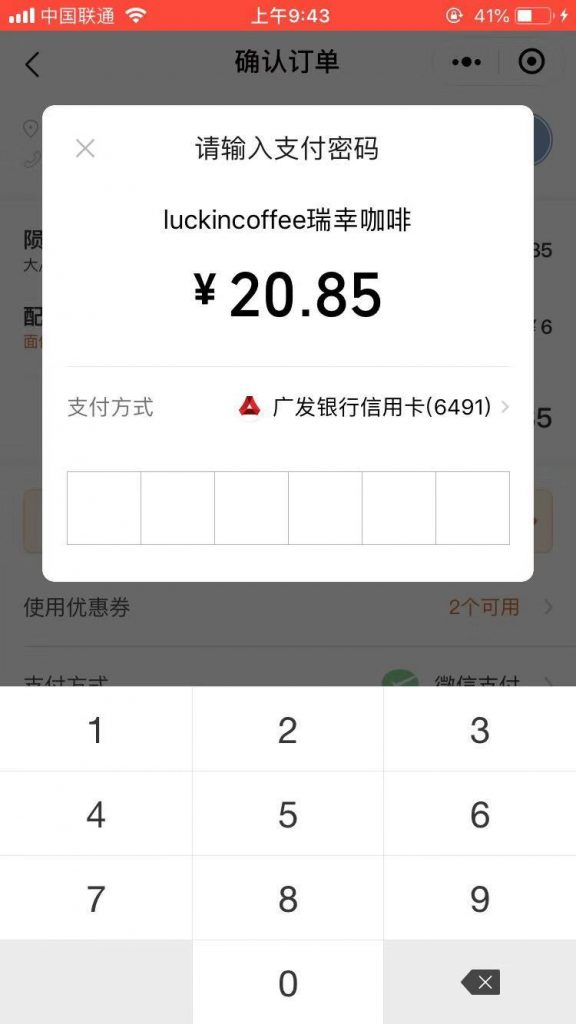
3\. The customer confirms the payment with their WeChat Wallet secret pin.
4\. The payment is successful, and the website will redirect the customer to the payment confirmation page.
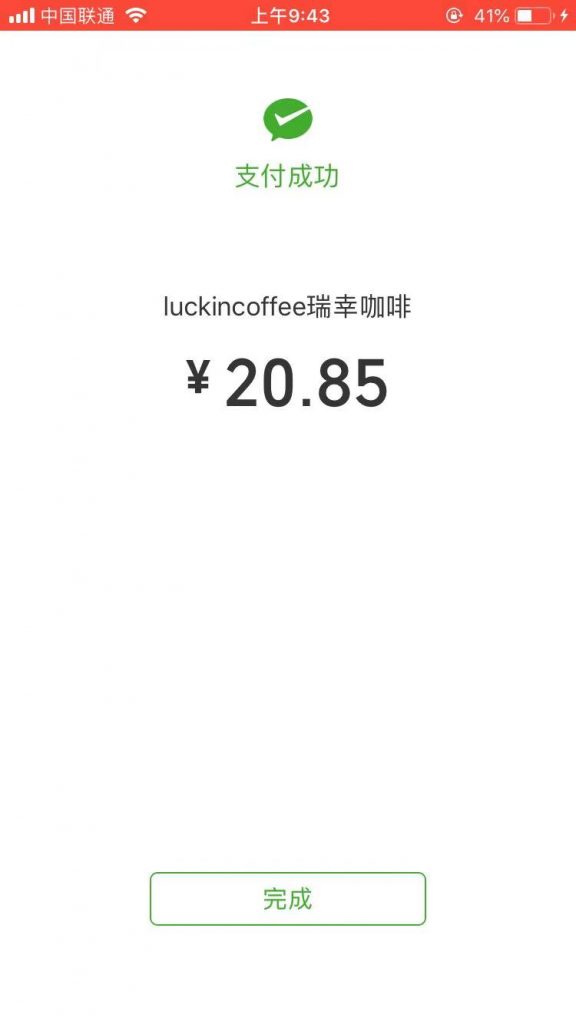
See our documentation on [Common WeChat Pay Error Messages](/common-error-messages/common-wechat-pay-error-messages/) if your customers are experiencing checkout issues.
---
Source: https://docs.chinapaymentsplugin.com/troubleshooting/how-do-i-add-gaucho-plugins-support-to-my-stripe-team/
---
title: "How do I add Gaucho Plugins Support to my Stripe Team?"
description: "If you need advanced troubleshooting support, you can grant access to your Stripe account so the Gaucho Plugins team can assess the issue."
url: "https://docs.chinapaymentsplugin.com/troubleshooting/how-do-i-add-gaucho-plugins-support-to-my-stripe-team/"
---
1. Login to your Stripe account and go to Settings > [Team](https://dashboard.stripe.com/settings/team).
2. Add our support email address as a team member with Developer level access:
```
support@gauchoplugins.com
```
---
Source: https://docs.chinapaymentsplugin.com/troubleshooting/troubleshooting-steps/
---
title: "Troubleshooting Steps"
description: "These are the troubleshooting steps you can take to resolve any issues you're experiencing with China Payments Plugin."
url: "https://docs.chinapaymentsplugin.com/troubleshooting/troubleshooting-steps/"
---
If you're having any problems with China Payments Plugin, we recommend the following troubleshooting steps.
**Important: Before proceeding, please ensure you have a backup of your website.**
1. Ensure you're running a supported PHP version (7.4+) on your server environment. We have plans to eventually upgrade to PHP 8.X+.
2. Ensure all plugins, themes, and WordPress are updated to the latest possible versions.
3. Be sure to download and update to the latest version of China Payments Plugin from your [Account](https://gauchoplugins.com/account/) area. This portal can be activated with the original email address used for your purchase.
4. Disconnect and reconnect Stripe in both TEST and LIVE modes, and independently attempt payment in both modes.
* If attempting Alipay recurring subscription payments, make sure to use the [helper plugin](/payment-methods/alipay/).
5. Ensure that your Stripe account is fully approved and activated. You should double check the Stripe Dashboard to see about any errors or warnings about deactivation, etc. Check your [Payment Methods](https://dashboard.stripe.com/settings/payment_methods?platform_id=pcfg_1LmmIPHsA7C2ogJooNOcfMqL) to ensure all required payment methods are turned on properly.
6. Deactivate all plugins and attempt to reactivate them one by one, testing the bug with each activation. A default WordPress theme should be active during this entire testing process. Ensure you have caching at all levels disabled during testing if possible. Caching may occur at the server level with NGINX or Apache, via browser caching, utilizing caching plugins, and/or any with any CDN's you have active on the site.
7. If you're still struggling to get the plugin working, reach out to [support](https://chinapaymentsplugin.com/support/) with the following details:
* [ ] Inform us which of the integrations you are using (Payment Buttons, WooCommerce, or MemberPress).
* [ ] The link to the page where the issue is happening.
* [ ] To indicate what is going on, share all error messages you see, capture screenshots of the issue, or record your screen in an explanatory video.
* [ ] Share simple instructions on how to reproduce the issue on your site so our team can repeat the procedure as quickly as possible.
* [ ] Your hosting provider.
* [ ] WordPress Version, Plugin Version, PHP Version.
* [ ] Share a [temporary login access](https://wordpress.org/plugins/temporary-login-without-password/) link or WP-Admin credentials (We cannot be held responsible for any issues resulting from sharing this access, so be sure to **take a full backup of your website and database** ***before*** providing this access).
* [ ] FTP login or hosting login details.
[How Do I Remove All Plugin Data On Uninstallation](/faqs/how-do-i-remove-all-plugin-data-on-uninstallation/)
---
Source: https://docs.chinapaymentsplugin.com/troubleshooting/why-are-payments-failing-in-stripe/
---
title: "Why are payments failing in Stripe?"
description: "This page covers all the reasons we've identified that causes payments to fail."
url: "https://docs.chinapaymentsplugin.com/troubleshooting/why-are-payments-failing-in-stripe/"
---
1. Check the Common Error Messages below to ensure your customer is using the right checkout flow.
2. Ensure email addresses do not include unnecessary capitalizations, such as `123456789@QQ.com`. The proper input should be `123456789@qq.com`. Additionally, some email addresses may be marked as spam or fraud, so advise customers who continuously run into this issue to try using a different email address.
[Common WeChat Pay Error Messages](/common-error-messages/common-wechat-pay-error-messages/)
---
Source: https://docs.chinapaymentsplugin.com/troubleshooting/why-are-payments-for-wechat-and-alipay-getting-refunded/
---
title: "Why are payments for WeChat Pay and Alipay getting refunded?"
description: "Sometimes, we've seen WeChat Pay and Alipay payments getting refunded. Here are the possible causes."
url: "https://docs.chinapaymentsplugin.com/troubleshooting/why-are-payments-for-wechat-and-alipay-getting-refunded/"
---
This can be a problem in 2 known circumstances:
1. If your customers aren't following the proper [WeChat Pay checkout flow](/common-error-messages/common-wechat-pay-error-messages/).
2. Endpoint URL configuration issues related to using API keys, instead of using Stripe Connect (read below).
Once a user has started a transaction, Stripe needs to reach your Stripe Endpoint URL in order to finish the process. Otherwise, Stripe will not complete the process and will refund the transaction.
The Endpoint URL looks something like this:
> [https://yoursite.com/wp-admin/admin-ajax.php?action=wpstripeglobal\\\_source\\\_chargeable\\&wpstripeglobal\\\_source\\\_chargeable=1](https://yoursite.com/wp-admin/admin-ajax.php?action=wpstripeglobal\_source\_chargeable\&wpstripeglobal\_source\_chargeable=1)
If your payment is refunded, something may be blocking the Stripe Endpoint URL. These may be the following reasons:
```
A. Your WordPress Stripe Endpoint URL is protected behind Nginx or apache security protection which requires a user/password as shown below:
B. Your Dashboard is not working for some reason.
C. Any other reason why your Stripe Endpoint URL is currently unavailable.
```
How do I test if the Stripe Endpoint URL is available?
1\. Open a new incognito window in your browser.
2\. Go to your WordPress Dashboard.
3\. If you don't see the default WordPress Login screen and see something different, it's likely not available to Stripe and won't complete the transaction.
Clear any obstacles between Stripe and your Stripe Endpoint URL or use Stripe Connect to resolve the issue.
---
Source: https://docs.chinapaymentsplugin.com/troubleshooting/why-isnt-stripe-connect-working/
---
title: "Why isn't Stripe Connect working?"
description: "In some cases, Stripe Connect may redirect to your site with a 404 error."
url: "https://docs.chinapaymentsplugin.com/troubleshooting/why-isnt-stripe-connect-working/"
---
In some cases, Stripe Connect may redirect to your site with a 404 error.
This can sometimes be caused if the Stripe Connect redirect URL is blocked on your server for some reason. This is common if your site's structure is not based on the default WordPress `/wp-admin/` and perhaps has files stored in a subdirectory or plugins blocking URLs for security purposes.

We are currently working on a fix to this issue so it is resolved in the long-term. In the meantime, we suggest temporarily changing the default WordPress URL structure to `/wp-admin/` login and you may attempt temporarily disabling any security plugins when making the Stripe Connection.
If you find any other issues with Stripe Connect not working, please contact our support team.
---
Source: https://docs.chinapaymentsplugin.com/troubleshooting/woocommerce-order-completion/
---
title: "WooCommerce Order Completion"
description: "This page explains how WooCommerce Order Completion works in China Payments Plugin."
url: "https://docs.chinapaymentsplugin.com/troubleshooting/woocommerce-order-completion/"
---
### WooCommerce Order Completion
By default, WooCommerce will only auto-complete paid orders for products that are **both Virtual and Downloadable**, assuming that the shop needs to fulfill/ship any orders that don’t meet these criteria.
If your orders are not auto-completing and you want them to do so, then the workaround would be to ensure that your products are marked as **both Virtual and Downloadable**.
Alternatively, you can use a plugin like [Autocomplete WooCommerce Orders](https://wordpress.org/plugins/autocomplete-woocommerce-orders/) or [Order Status Control](https://woocommerce.com/document/woocommerce-order-status-control/).
Marking products as both Virtual and Downloadable may enable the Downloads menu item in the WooCommerce Account area accessed by users. This can be hidden with CSS.
### Payment Confirmation
We've optimized China Payments Plugin with 3 methods for verifying payment confirmation:
* [Webhook Configuration](/faqs/how-do-i-set-up-stripe-webhooks/)
* User Callback
* Cron Checks
For high-volume sites (>1 order per minute), it may be beneficial to disable the cron checks in order to optimize performance.
In order to disable cron checks, please add this custom code to your theme-functions.php file:
```
add_filter( 'china_payments_woocommerce_has_background_payment_check', '__return_false' );
```
For developers, the registered Action is `china_payments_woocommerce_background_payment_check`
---
Source: https://docs.chinapaymentsplugin.com/zhong-wen-jian-ti/
---
title: "您好 👋"
description: "您尝试付款的供应商使用名为 China Payments Plugin 的工具,该工具与 Stripe.com 合作处理微信支付和支付宝付款。"
url: "https://docs.chinapaymentsplugin.com/zhong-wen-jian-ti/"
---
这是中国支付插件的完整用户体验概述。
您到达此页面是因为您可能正在尝试使用微信支付或支付宝完成支付。
您尝试付款的供应商使用名为 China Payments Plugin 的工具,该工具与 Stripe.com 合作处理微信支付和支付宝付款。
本文档涵盖了使用这些付款方式结账时的用户体验。
如果您在完成付款时遇到任何问题,请通知供应商为China Payments Plugin 背后的公司(“China Plugins”)留下反馈。
请仔细阅读以下微信支付和支付宝的常见错误信息及其原因。
[微信支付的用户体验](/zhong-wen-jian-ti/payment-methods/wechat-pay-user-experience/)[支付宝用户体验](/zhong-wen-jian-ti/payment-methods/alipay-user-experience/)
---
Source: https://docs.chinapaymentsplugin.com/zhong-wen-jian-ti/payment-methods/wechat-pay-user-experience/
---
title: "微信支付的用户体验"
description: "当客户使用手机或电脑桌面设备时,微信支付的用户体验(UX)是不同的。以下是每个结账流程的步骤。"
url: "https://docs.chinapaymentsplugin.com/zhong-wen-jian-ti/payment-methods/wechat-pay-user-experience/"
---
当客户使用手机或电脑桌面设备时,微信支付的用户体验(UX)是不同的。以下是每个结账流程的步骤。
### 电脑桌面上的微信支付用户体验
1\. 客户从支付选项中选择微信支付,出现支付表单。
###
2\. 客户必须填写微信支付的付款表格。
3\. 点击 "提交付款 "后,会生成一个独特的二维码供客户扫描。由于客户使用的是桌面设备,他们需要用微信手机应用程序扫描二维码。
4\. 用移动设备扫描二维码。
5\. 授权支付。
通过微信手机应用完成支付后,客户会被转到您在手机浏览器中指定的 "感谢页面"。桌面设备上的表格所产生的二维码不再有效。
如果您遇到结账问题,请参见我们关于[常见的微信支付错误信息](/zhong-wen-jian-ti/common-error-messages/common-wechat-pay-error-messages/)的文档。
## **手机上的微信用户体验**
1\. 客户通过微信支付二维码到达结账页面。
2\. 客户必须用微信APP实际扫描二维码。

3\. 客户用他们的微信钱包密匙确认付款。

4\. 支付成功后,网站会将客户重定向到支付确认页面。

如果您遇到结账问题,请参考我们的文档[常见的微信支付错误信息](/zhong-wen-jian-ti/common-error-messages/common-wechat-pay-error-messages/)**。**
---
Source: https://docs.chinapaymentsplugin.com/zhong-wen-jian-ti/payment-methods/alipay-user-experience/
---
title: "支付宝用户体验"
description: "当客户使用行动装置或电脑桌面设备时,支付宝的用户体验(UX)是不同的。以下是每个结账流程的步骤。"
url: "https://docs.chinapaymentsplugin.com/zhong-wen-jian-ti/payment-methods/alipay-user-experience/"
---
当客户使用行动装置或电脑桌面设备时,支付宝的用户体验(UX)是不同的。以下是每个结账流程的步骤。
无论你设置了什么结账流程,客户都会被转到支付宝网站或手机APP来完成支付,这取决于他们使用的是行动装置或电脑桌面设备。
## 支付宝在电脑桌面上的用户体验
在您的网站上点击提交付款后,客户会被重新定向到支付宝网站。
他们可以选择用行动装置扫描二维码(最常见),或者用他们的支付宝账户信息登录(不太常见)。


如果您的客户遇到结账问题,请参考我们关于[常见支付宝错误信息](/zhong-wen-jian-ti/common-error-messages/common-alipay-error-messages/)的文档。
## 支付宝在行动装置上的用户体验
在您的网站上点击提交付款后,客户会看到这个屏幕,让他们选择打开支付宝手机APP完成支付,或打开支付宝网站完成支付,如上图。

如果他们选择手机APP选项,他们就会在支付宝手机APP上完成结账过程,然后手机APP会将他们重定向到您的付款确认页面。
如果您的客户遇到结账问题,请参考我们关于[支付宝常见错误信息](/zhong-wen-jian-ti/common-error-messages/common-alipay-error-messages/)的文档。
---
Source: https://docs.chinapaymentsplugin.com/zhong-wen-jian-ti/common-error-messages/common-wechat-pay-error-messages/
---
title: "常见的微信支付错误信息"
description: "以下是我们看到的客户通过Stripe +微信支付集成进行支付时的所有错误信息。"
url: "https://docs.chinapaymentsplugin.com/zhong-wen-jian-ti/common-error-messages/common-wechat-pay-error-messages/"
---
以下是我们看到的客户通过Stripe +微信支付集成进行支付时的所有错误信息。
## 微信二维码不支持 "长按"
看到此错误意味着长按 QR 码并尝试提取其数据不是受支持的方法。
您应该尝试使用微信手机APP上的相机功能物理扫描二维码。
## 客户需要经过验证的微信账户
我们的插件所使用的Stripe集成只支持经过验证的微信支付账户的支付。一般来说,这些账户是由中国公民或拥有微信正式运营国家的国民身份证的公民拥有的。
未经验证的微信用户在尝试付款时将收到一个错误信息。这就是他们将看到的错误信息:
## **从屏幕截图中扫描二维码**
商家已经完成了异常活动。目前无法通过扫描照片中的二维码完成支付。
这意味着客户试图将支付二维码作为截图导入微信,这是不支援的。客户必须通过用微信应用中的相机功能实际扫描二维码来完成结账。
---
Source: https://docs.chinapaymentsplugin.com/zhong-wen-jian-ti/common-error-messages/common-alipay-error-messages/
---
title: "常见的支付宝错误信息"
description: "以下是我们看到的客户通过Stripe +支付宝集成进行支付时的所有错误信息。"
url: "https://docs.chinapaymentsplugin.com/zhong-wen-jian-ti/common-error-messages/common-alipay-error-messages/"
---
以下是我们看到的客户通过Stripe +支付宝集成进行支付时的所有错误信息。
## **商业交易信息不完整**
收到这个错误信息意味着支付宝没有在您的Stripe账户上被正确激活。
\\
激活后,支付宝应该出现在您的Stripe支付方式的 "实时 "标签下,设置>支付方式。
## 二级商户状态错误
请参考Stripe的文档,了解该错误的原因。
[https://support.stripe.com/questions/alipay-secondary-merchant-status-error](https://support.stripe.com/questions/alipay-secondary-merchant-status-error)
## 在微信原生浏览器中尝试支付宝结账
如果您的客户试图在微信APP的原生浏览器中用支付宝结账,他们很可能会遇到下面这个错误,这就要求客户应该将URL复制并粘贴到另一个手机浏览器中以完成支付。
很快,我们计划实施一个解决方法,检测微信原生浏览器,并尝试强制或重定向客户到另一个手机浏览器,以防止这个问题。
## 扫描桌面二维码时,支付宝结账可能失败
We have discovered an issue that is known by Stripe and being worked on by their team in collaboration with Alipay.
When customers attempt to scan the QR code generated on a desktop device, they may receive the following error:
建议的解决方法:
在Stripe/Alipay解决这个问题的时候,请要求您的客户通过他们的行动装置在您的网站上完全完成结账过程(不要把桌面放在结账流程中)。
一旦Stripe/Alipay解决了这个问题,它将自动工作,不需要对插件或您的网站进行更新。